version v7.2.
For up-to-date documentation, see the
latest version.
Restricted Trustnest Digital Platform (RTDP)
9 minute read
Overview
Restricted TrustNest Digital Platform (RTDP) is a cloud platform offered by Thales Digital Factory.
Platform Purpose
RTDP is a digital platform based on Azure Stack Hub. It is the first multi-tenant Diffusion Restreinte cloud in France.
It provides:
- A multi-tenant IaaS infrastructure for the development and deployment of software applications
- Dedicated and secured interconnections to link the Restricted networks of industrial partners and public administrations
RTDP is the reference platform to host restricted Data (DRSF/RUE) projects for all BL across Thales.
For more information about the RTDP platform, please refer to TrustNest Restricted Software Factory .
Available Services
| Service | URL |
|---|---|
| GitLab | GitLab |
| Artifactory | Artifactory |
| Xray | Xray |
| SonarQube | SonarQube |
| Coverity | Coverity |
| Code Companion | N/A - EA through VDI |
All versions and changelog are available here:
RTDP Changelog
Access and Subscription
Pricing
There are two licenses:
- DevSecOps: 36 €/month
- SAST: 70 €/month
In addition, you must add 100 €/month for platform hosting.
Please find more informations at Software Factory Pricing
How to Subscribe
Prerequisites
Request a New TrustNest Restricted User Account, please refer to these documents:
Subscribe to the Software Factory offer
You must subscribe to either DevSecOps or SAST.
Additional standard onboarding steps:
- Submit access request via the dedicated portal/form:
RTDP access request portal URL - Read the RTDP Quick-start guide:
RTDP Quick-start - Receive credentials and onboarding information from the RTDP support team.
GitLab
RTDP GitLab URL:
GitLab
RTDP GitLab is integrated with TrustNest Restricted Software Factory and is the central service for managing Git repositories within the RTDP environment.
GitLab Mirroring
RTDP supports mirroring with the TDP C2 GitLab instances.
External repositories (public ones) are not availaible for mirroring in RTDP, and when requesting mirrrors from TDP C2, a check is performed to ensure the source repo is not public.
Mirroring Topology
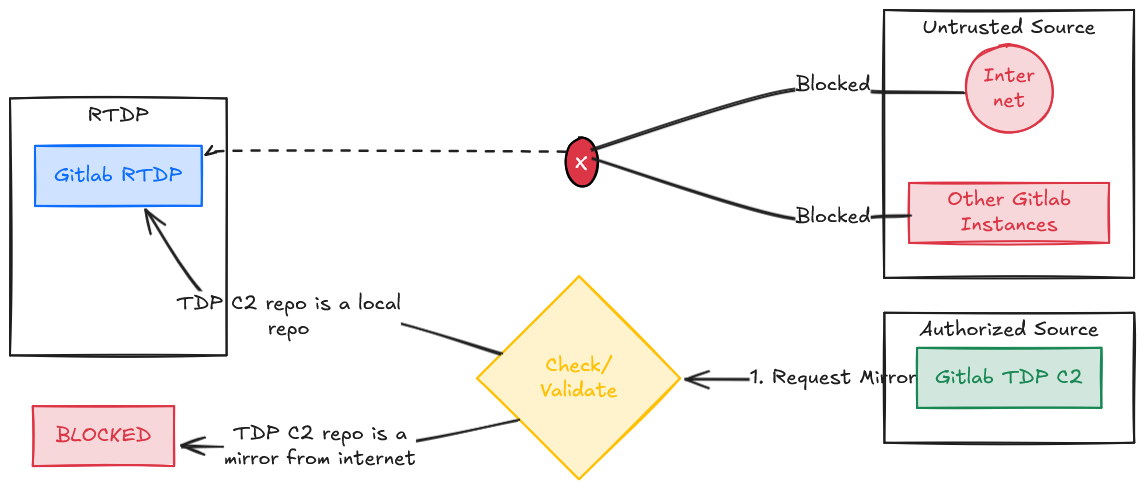
On RTDP, only the support team can set and manage mirrors/pulls.
Mandatory Step: Create a Service Account for Mirroring
To configure a GitLab mirror into RTDP, you must create a dedicated service account on the source GitLab instance (TDP C2). This account will be used exclusively for mirroring.
Recommended properties:
- A technical user (not tied to a personal identity)
- Restricted to the minimum required permissions:
- For pull mirroring into RTDP:
read_api, api, write_repository, read_repository - Avoid unnecessary admin or write permissions
- For pull mirroring into RTDP:
- Scoped to only the projects/groups that need to be mirrored
Please refer to the following Catalog Item to create your service account:
TDP C2 Service Account creation
Generate an Access Token for the Service Account
On the source GitLab instance:
- Log in with the service account.
- Go to User Settings > Access Tokens (or PAT / Personal Access Token page).
- Create a Personal Access Token with at least:
read_api, api, write_repository, read_repository- Any other scope required by your source GitLab, but keep the scope as minimal as possible.
- Set an appropriate expiration date in line with your security policies.
- Store the token securely on your side (password manager, Vault, Keypass, Bitwarden, etc.).
This token is mandatory for the RTDP support team to set up the mirror.
How to Securely Share the Token with RTDP Support
To request the creation of a mirror, you must securely provide the token associated with the service account to the RTDP support team.
Accepted channels (in order of preference):
Cryptobox (recommended by default)
- Upload the token in a secure file (text file or password manager export) to your Cryptobox space.
- Share access only with RTDP support (e.g. support-rtdp@thalesdigital.io ).
- In your service request, include:
- The Cryptobox link
- Any additional information needed (project name, source URL, mirroring direction, etc.).
ZED encrypted email + out-of-band channel
If Cryptobox cannot be used:- Send the token via ZED encrypted email to support-rtdp@thalesdigital.io .
- Share the decryption passphrase (or any required details) through a different channel (e.g. Teams, Jabber, phone call).
- Do not include the token and the decryption key in the same channel.
Encrypted archive + out-of-band channel
If neither Cryptobox nor ZED is possible:- Put the token in an archive (e.g.
.zip,.7z) protected by a strong password. - Send the encrypted archive by email or file transfer to support-rtdp@thalesdigital.io .
- Communicate the password via another channel (Teams, Jabber, etc.).
- Put the token in an archive (e.g.
In all cases:
- Do not send tokens in clear text over email or Teams.
- Ensure that the token is time-limited and can be revoked if needed.
Requesting a GitLab Mirror on RTDP
Once you have:
- Created the service account
- Generated the access token
- Prepared the secure sharing method for the token
Create a request to RTDP support:
- Open a ticket via the RTDP support portal:
Request GitLab Mirroring TDP C2 -> RTDP - Provide at least the following information:
- RTDP GitLab repository URL: RTDP target project URL
- Source GitLab repository URL: TDP C2 Source project URL
- Mirroring direction:
- Pull mirror into RTDP (most common)
- Cryptobox / ZED / encrypted archive details for retrieving the token
- RTDP support will:
- Retrieve the token through the secure channel
- Configure the mirror in RTDP GitLab
- Confirm once the mirror is active or request additional information if needed
Artifactory
RTDP Artifactory URL:
Artifactory
RTDP Artifactory is used to host and proxy binary artifacts (Maven, npm, Docker, etc.) in the RTDP environment.
Mirror / Proxy Possibilities
On RTDP, there are two types of mirrors (remote repositories):
Global Mirrors
Visible to everyone on the platform. These are shared, platform-level repositories, and must be created and managed by the support team.- Examples: Mirrors to Internet repositories (Maven Central, npm registry, etc.), or mirrors to other Artifactory instances (such as TDP).
Project Mirrors
Restricted in visibility to a specific project, group, or set of users.
These are created and managed by users themselves within their own Artifactory projects.- Project mirrors can only target other (internal) Artifactory instances—not Internet repositories.
Global Mirrors (Support Managed)
You can request a global Artifactory public mirror through the following form:
Request an Artifactory Public Mirror
- Only the support team can set and manage global pulls (shared/global remote repositories).
- Use this process for Internet-facing repositories and other cross-project needs.
Before Requesting a New Global Public Mirror
To avoid duplicates and unnecessary maintenance:
- Check if the repository already exists in the existing public remotes:
- Search in the shared/public repositories in Artifactory.
- If in doubt, contact: support-rtdp@thalesdigital.io
- Do not request a mirror for your own project-level repositories:
- Manage these yourself within your Artifactory project.
Project Mirrors (Self-Managed)
- For project/private usage (e.g., internal sharing within a team/project), you can create and manage your own remote repositories within your Artifactory project.
- These do not require a request as long as the remote points only to other Artifactory instances (e.g., TDP).
- Internet endpoints are not permitted at the project level. Only support can create Internet-facing mirrors.
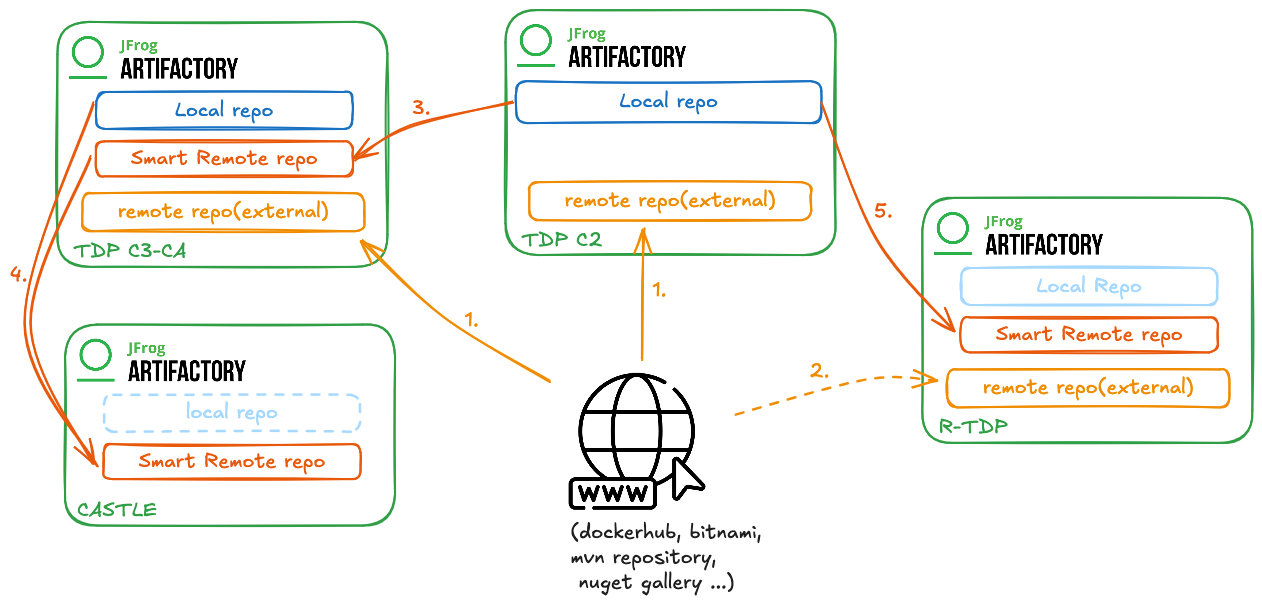
Supported Directions for Remote Repositories
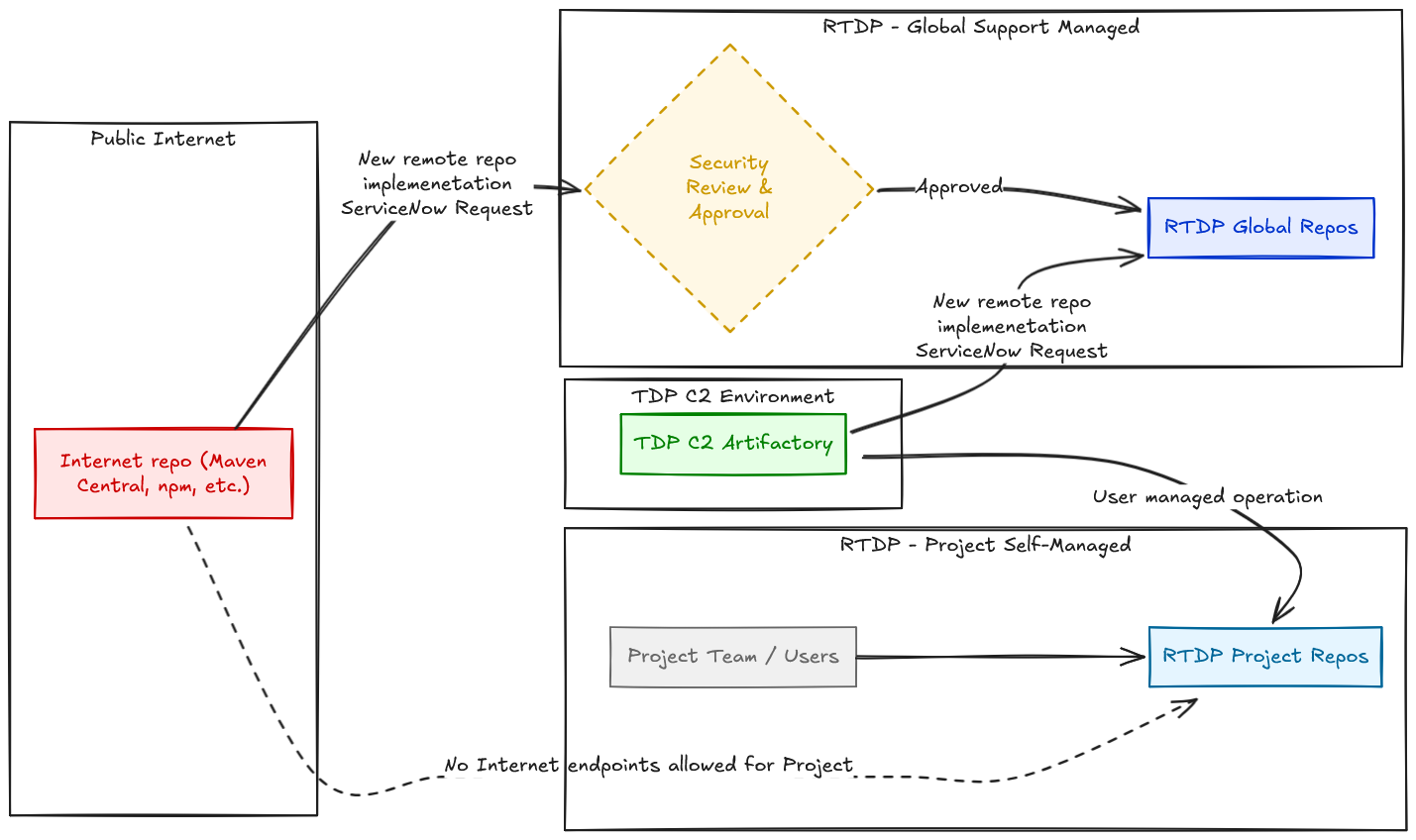
Please contact the support through a general request to:
- Validate new global remotes.
- Confirm allowed external sources.
- Get help if unsure whether a repository should be global or project-local.
Specific Configuration for Repositories to TDP C2
When creating a new remote repository in RTDP that points to TDP C2(TDP Artifactory), you must explicitly select the RTDP proxy.
This applies to:
- Global remotes managed by RTDP support.
- Your own project-level remotes (you are responsible for using the correct proxy).
Steps in Artifactory UI
- Go to:
Repositories > New Remote Repository - Fill in the usual fields:
- Package type
- URL to TDP Artifactory repository
- Name, description, etc.
- Open the Advanced tab:
- Go to the Network section.
- Under Proxy, select:
rtdp-proxy
- Save the configuration.
All remote repositories (including those created in your own Artifactory projects) that
point to TDP must use the rtdp-proxy to comply with RTDP network and security policies.
Artifactory Remote Repository – RTDP Proxy Configuration
Xray
RTDP Xray URL:
Xray
Xray is used for artifact analysis, vulnerability detection, and license compliance on the artifacts stored in RTDP Artifactory.
Please find more information on the Xray tool page .
Developing with Safe Packages
To ensure your application uses only secure and compliant artifacts, follow these steps:
- Download the required artifacts for your project from the RTDP Artifactory.
- Monitor all required packages and their associated CVEs on an ongoing basis.
- If any package is identified with a critical vulnerability (CVE score > 9), follow the guide in the section below: When a Policy Blocks an Artifact Download .
- Apply the necessary changes to address flagged vulnerabilities, ensuring that your application no longer includes any packages that would be blocked by active policies.
Vulnerability data (CVEs) is updated continuously. Re-scan your dependencies periodically to catch new vulnerabilities early. Frequent scanning reduces the cost and effort required to upgrade or remediate, and keeps your project secure.
Existing Policies
The following Xray policies are currently configured on RTDP:
block-critical-vuln-on-code-repoThis policy blocks artifacts when critical vulnerabilities are detected. In practice, this corresponds to artifacts containing CVEs assessed by Xray as Critical (typically severity score greater than 9 in Xray classification).NoteThis policy applies exclusively to code dependency repositories (e.g., npm, maven, pypi, etc.) and does not apply to system or container packages (e.g., deb, rpm, Docker, Helm, etc.).
flag-all-vulnThis policy does not block downloads. It is used to flag and report all detected vulnerabilities, regardless of their severity level. Its purpose is informational, to provide visibility on all known vulnerabilities found in analyzed artifacts.
flag-all-vuln is informational only, whereas block-critical-vuln-on-code-repo
has an enforcement effect and can prevent artifact usage when critical vulnerabilities are present.
SonarQube
RTDP SonarQube URL:
SonarQube
SonarQube provides code quality and security analysis for your projects in RTDP.
Please find more information on the SonarQube tool page .
🚧 Under Construction
Coverity
RTDP Coverity URL:
Coverity
Coverity provides static application security testing (SAST) for projects hosted on RTDP.
Please find more information on the Coverity tool page .
🚧 Under Construction
Code Companion
N/A (to be updated if a specific Code Companion service is made available on RTDP).
Inner Source Access from RTDP
To access Inner Source resources (GitLab projects, Artifactory repositories) from RTDP, additional steps are required. Please refer to the Inner Source documentation for the general process.
For the moment, you need to manually request the access to Inner sources, please create a general request in RTDP to be given the access.
Contact
If you need help or support, please make a general request to the RTDP Support.
Please provide as much context as possible in your request (service concerned, project name, error messages, logs, etc.) to speed up resolution.