The site that you are currently viewing is a static version of the Software Factory
documentation delivered with the
version v7.2.
For up-to-date documentation, see the
latest version.
Artifactory Cleanup
Getting Started with Cleanup
3 minute read
This topic provides instructions with Cleanup in Artifactory. It includes granting permission to a project admin, configure and run cleanups, and some monitoring operations.
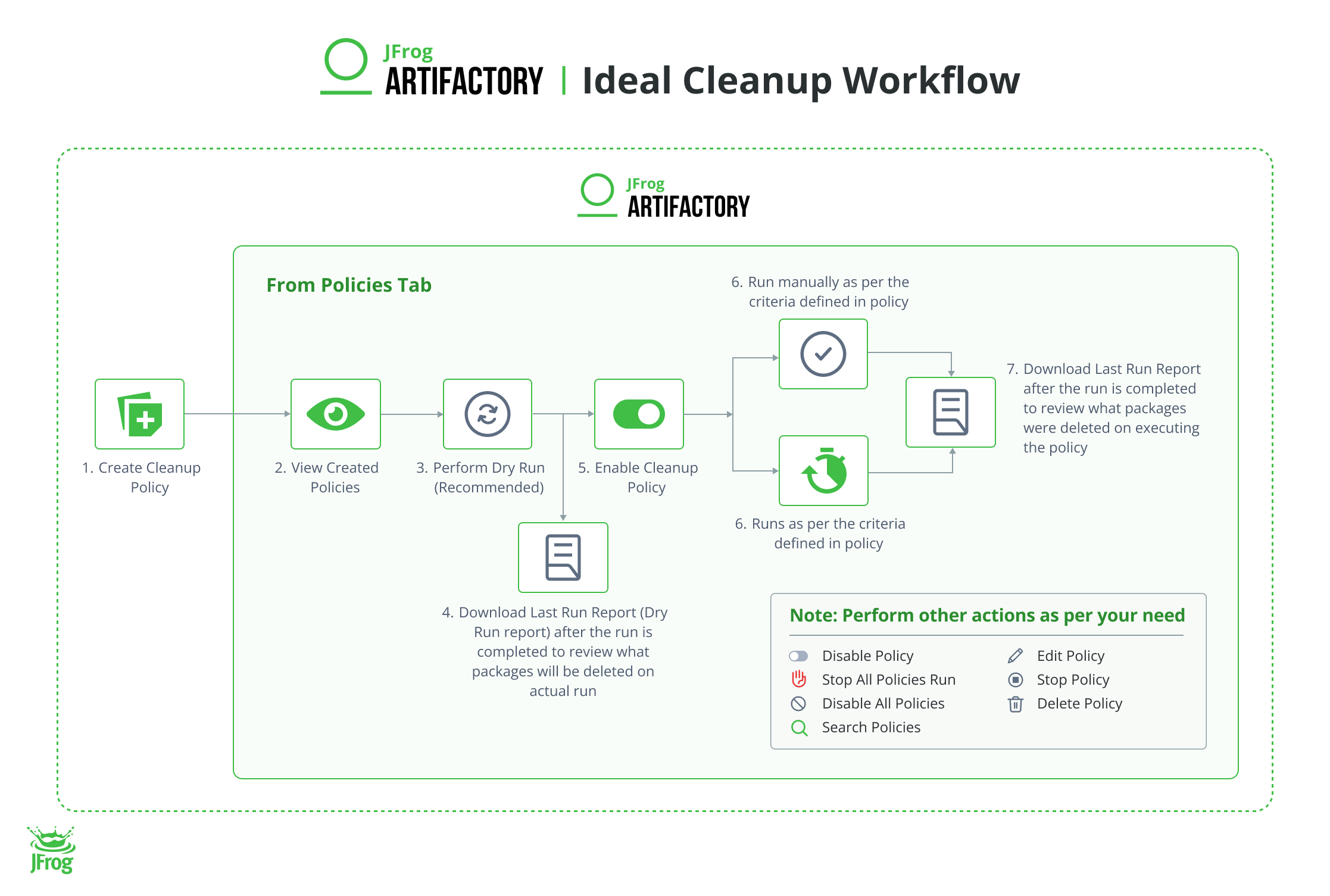
Cleanup Workflow on Artifactory Project
Create Cleanup Policy for Package
- Navigate to your Project
- From the
Administrationtab of your project, selectArtifactoryRepositories" - Select Retention Policies
- Select Create Policy and then Cleanup Policies
- By default Package should be selected, Fill the Policy Name , and Choose a Package Type
- Define Repository Scope, select the repositories you want to include
- Include Repository Patterns to specify patterns or explicit repository names to include
- Exclude Repository Patterns to specify patterns or explicit repository names to exclude
- Check Include All Repositories to apply the policy to all repositories within the project
- Define Package Scope, select the packages you want to include
- Include Packages Patterns to specify patterns or explicit packages names to include
- Exclude Packages Patterns to specify patterns or explicit Packages names to exclude
- Check Include All Packages to apply the policy to all packages within the project
- Define your
Time-based
policy conditions:
- Packages Older Than : Enable checkbox, and apply the number of days/weeks/months/years.
- Packages Not Downloaded Since : Enable checkbox, and apply the number of days/weeks/months/years.
- for the not downloaded packages.
- Or Define a
Version Based
policy condition:
- Select the number of the latest versions to keep. The policy will delete all versions that exceed this number, with the latest version excluded.
- Or Define a
Property-based
policy condition:
- Enable checkbox, and specify one property key and value to include packages that match.
- Check Exclude based on property to exclude packages that match the property key and value.
- Define Cron Settings to schedule the cleanup policy execution.
Important
Leave the checkbox Skip Trash Can unselected to ensure that deleted packages are moved to the trash can for potential recovery.
- Click Save to create the policy.
Perform Dry Run
- Navigate to your Project
- From the Administration tab of your project, select Artifactory > Repositories
- Select Retention Policies
- Found a Policy and at the right end of the line, Select … > Perform Dry Run
- After the completion, you should be able to see a
Last Run Statuswih a green check.
Preview Last Run Report
- Navigate to your Project
- From the Administration tab of your project, select Artifactory > Repositories
- Select Retention Policies
- Change the tab to Runs
- Select ⬇️ button at
Reportscolumn to download the report

Important
Verify in the report that the execution is as expected before enabling the policy.
Enable and Run
- Navigate to your Project
- From the Administration tab of your project, select Artifactory > Repositories
- Select Retention Policies
- Found a Policy and at the right end of the line, Switch to Active

Note
For repositories that are not part of a project, you need to create a request to your Platform Administrator. Check at your platform page for the cleanup procedure , or contact them in a ticketing tool.