version v7.2.
For up-to-date documentation, see the
latest version.
GitLab repo. clean
6 minute read
This guide will help you check your storage consumption in GitLab, explaining different elements that contribute to storage usage.
Check Storage Consumption in GitLab
This guide will help you check your storage consumption in GitLab, explaining different elements that contribute to storage usage.
1. Access Project Settings:
- Navigate to your GitLab project.
- On the right of the page, you can find
project information, with the storage overview
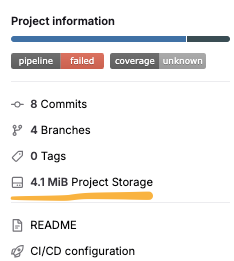
2. Locate Storage Breakdown:
- Navigate to your GitLab project.
- On the left sidebar, select Settings > Usage Quotas .
- On the top of the page, you can find the total usage for your repository
- View the detail breakdown of the storage usage by
Repository,Artifacts,LFS, orContainer Registry
3. Understand Storage Elements:
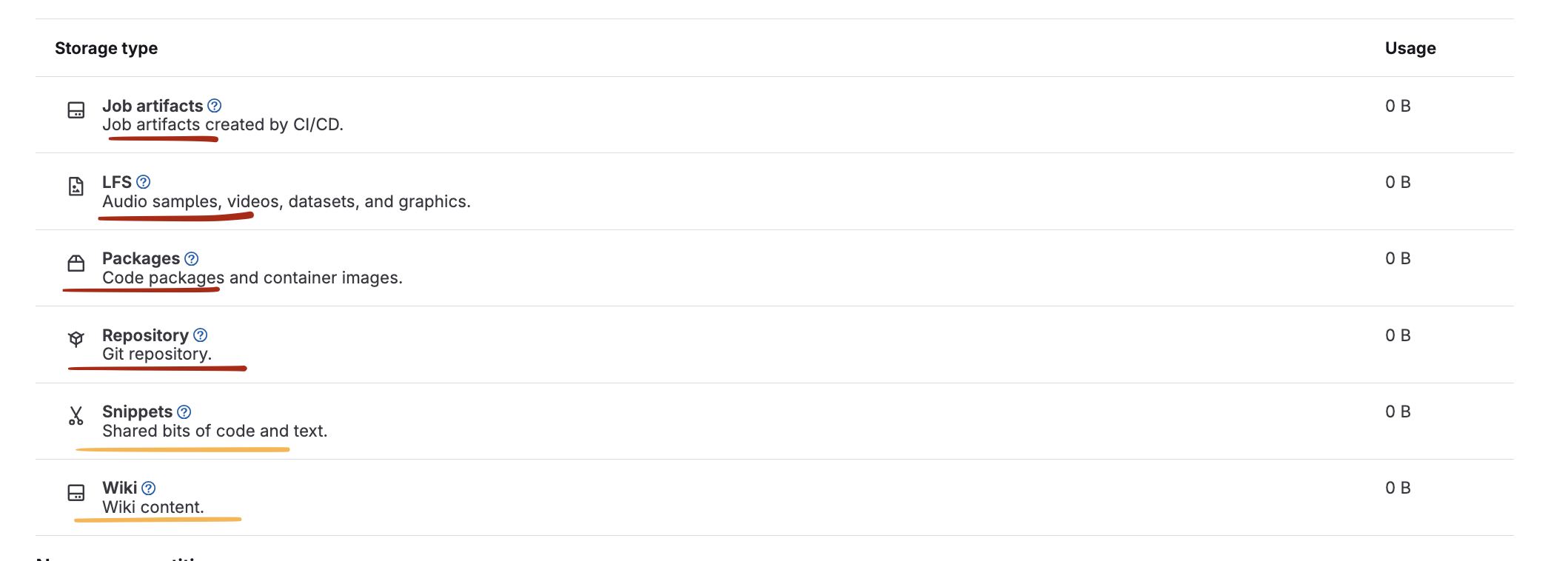
- Repository Storage: This includes the size of your Git repository, which comprises source files, commit history, branches, and tags.
- Build Artifacts: Temporary files created during CI/CD jobs. These can be large, especially if your jobs generate lots of output files or testing reports.
- LFS (Large File Storage): Stores large files separately from your repository to save space and improve performance. This includes binaries, images, and other large assets.
- Container Registry: Stores Docker images for use in your CI/CD pipelines and deployments. These images can accumulate over time if not managed properly.
- Wikis and Snippets
4. Analyze Storage Consumption:
- Review the storage breakdown under each section to understand where most of your storage is being consumed.
- Identify elements that are consuming unexpected amounts of space.
By following these steps, you can effectively monitor your GitLab project’s storage consumption and understand the different elements contributing to it.
This helps in making informed decisions about managing and optimizing your storage usage.
Repository Cleanup
This section will help you clean your repository and artifacts in GitLab to maintain optimal performance and manage storage efficiently.
Here are some general recommendations for branches that may be good candidates for deletion:
- Long Stale Feature Branches: A topic branch hasn’t been active for a while, but it’s a good idea to discuss it with your team before deletion.
- Merged Branches: a branch has been successfully merged into the main development branch.
- Old Release Branches: you might have branches for specific releases.
When the project has significantly progressed past this release, the release branch is no longer needed.
Deleting Old Repository Branches
- Navigate to your GitLab project.
- In the left sidebar, select Code > Branches .
- Select Stale tab, to display branches that have not been updated recently.
- Identify and delete branches that are no longer needed by selecting Delete branch at the three vertical dots (Kebab Menu)
If the Keep artifacts from most recent successful jobs option is enabled for the project ( Settings > CICD > Artifacts , enabled by default), the artifacts from the most recent successful jobs on each branch will be retained. In this case, deleting unused branches can help reduce storage consumption.
Setting Artifacts Expiration in your CI/CD Pipeline
- Open
.gitlab-ci.ymlfile of your repository using the GitLab pipeline Editor (or your favorite IDE). - At the
artifactssections in your job definitions, specifyingexpire_into automatically clean up old artifacts.
Example:
job_name:
  script:
    - execute_script
  artifacts:
    paths:
      - path/to/artifacts
    expire_in: 1 week
Remove Obsolete Tags
- Navigate to your GitLab project.
- In the left sidebar, select Code > Tags .
- Identify and delete tags that are no longer necessary by selecting the trash can icon.
Deleting Old Job Artifacts in GitLab
- Navigate to your GitLab project.
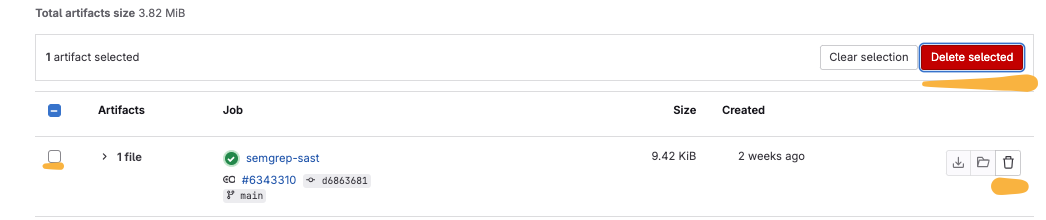
- In the left sidebar, select Build > Artifacts .
- Identify jobs with artifacts you want to delete
- Select the trash can to delete the job logs and artifacts
- Select all the artifacts to delete and select
Delete selectedfor bulk deletion.
Purging Container Registry
- Navigate to your GitLab project.
- In the left sidebar, select Deploy > Container Registry .
- Locate the images and tags in the container registry that are no longer needed.
- Select the trash can icon to delete the selected image.
Purging Package Registry
- Navigate to your GitLab project.
- In the left sidebar, select Deploy > Package Registry .
- Locate the packages in the registry that are no longer needed.
- Select the three vertical dots (kebab menu) next to the image.
- Select Delete to remove the selected package.
Activation of Delete branches after merge requests
- During the Merge Request review process, you can clean up the working branch by selecting the option Delete source branch when merge request accepted when the Merge Request is ready to be merged.

Split your project
It is advisable to consider splitting large Git repositories into smaller, more focused ones. To manage dependencies across these repositories, leverage technologies specifically designed for this purpose.
For instance, Git submodules can be used to keep a Git repository as a subdirectory of another Git repository.
For C and C++ projects, Conan is an excellent package manager that simplifies dependency management. Similarly, Maven is widely used in Java projects, while Node.js projects can benefit from Node modules. Rust developers can utilize Cargo crates, and Go projects can make use of Go modules.
However, while splitting repositories and using dependency management tools can offer significant advantages, it is important to be aware of potential challenges.
Increased complexity in tracking dependencies and ensuring compatibility across different repositories can arise.
Additionally, teams must be well-versed in the tools they choose to adopt, as improper use can lead to integration issues and build complications.
Set Up .gitignore to ensure unnecessary files are ignored and not pushed to the repository.
For more best practices on using Git effectively, refer to our SCM Practices
Keep your Local Repository Clean
While maintaining an organized GitLab repository is crucial, you can find additional instructions and tips on optimizing your local Git repositories:
Prune Local Repository: Clean up unnecessary files and optimize the local repository.
git fetch --prune
The –prune (or -p) option tells Git to delete any local branches that are tracking a remote branch that has been deleted.
- Delete local branches : Removing Unused Branches or that have been merged.
# First, list all local branches that have been merged
# (optional) -r To include remote-tracking branches
git branch --merged

# exclude some branches :
## ^\*|^\+: Excludes the current branch
## master|main|dev: Excludes branches named master, main, or any branch containing dev
## you can add any additional branches
git branch --merged | grep -Ev "(^\*|^\+|master|main|dev|skip-also-branch)" | xargs --no-run-if-empty git branch -d
- Configuring Auto Maintenance : to automatically perform some maintenance tasks, ensuring your repository stays clean with minimal effort.
# Enable auto garbage collection at every command
git config --global gc.auto 256

# Automatically prune unreachable objects
git config --global gc.pruneExpire "1.day"

# Set auto-packing with a lower threshold
git config --global pack.packSizeLimit "2m"
Admin Housekeeping (Advanced Users)
- Use the built-in Housekeeping feature.
- Go to Admin
- Navigate to the project, then Settings > Repository > Repository maintenance .
- Select the Remove Blobs
- Navigate to the project, then Settings > Packages and registries > Container registry cleanup policies .
- Select Set cleanup rules to remove unused image tags to save storage space.
- Manually remove large files from history (advanced users).
- This involves using Git commands (
filter-repo,bfg-repo-cleaner) to rewrite history and remove large files, followed by force-pushing changes.
- This involves using Git commands (