version v7.2.
For up-to-date documentation, see the
latest version.
LEAP configuration
4 minute read
Concept
This guide will help you set up a modern development environment using Windows Subsystem for Linux (WSL2), combining the best of Windows and Linux tools. You’ll configure:
- WSL for running Linux tools natively on Windows
- A customized terminal environment for improved productivity
- Visual Studio Code with WSL integration
Prerequisites:
- A LEAP endpoint
- Basic familiarity with command line
Tasks
Common
From Company Portal:
- Install Microsoft Teams
- Install BeyondTrustPrivilege (see Endpoint Privilege Management documentation )
From Microsoft Store:
- Install Mozilla Firefox
- Install DevToys
WSL + Linux
From Microsoft Store:
- Install Ubuntu
- Install Windows Terminal
For security purposes, Zscaler inspects encrypted HTTPS traffic by intercepting SSL/TLS connections. To avoid certificate errors, the Zscaler root certificate must be manually installed.
Certificates and an automatic installation script are available on the GitLab TDP C3 . To access it, ensure that the Zscaler Private Access mode is connected.
If you need to connect a USB device to the Linux on the WSL environment, you can use usbipd-win .
Containerization environment
There are several ways to have a containerization environment on your LEAP, according to your needs.
Docker-Desktop
Docker Desktop cannot be installed on LEAP. Moreover, a paid subscription is needed for professional use (see Docker license ).
Docker Engine
- Install Docker Engine directly in your Ubuntu on WSL by following official Docker Engine Installation Procedure .
- Execute Linux postinstall procedure
You can now use docker in command line in your Terminal.
If you want a GUI, install the VSCode Docker extension
.
NOTE The main difference between using Docker Desktop with the WSL2 integration and using Docker directly in WSL2 without Docker Desktop is the level of integration with your tools. When you use Docker desktop, you have access to Docker in powershell/cmd, have access to your file on windows, the possibility to switch to Windows container and to use it with your IDE. If you install Docker inside your WSL2 distro, Docker will not be accessible from Windows directly.
Podman Desktop
If you are not familiar with Docker CLI or want something more similar to Docker-Desktop, you can use Podman Desktop .
- Install Podman Desktop with WSL2 as the machine provider
Podman Desktop with install a new WSL2 distribution called _podman-machine-default_.
As with the Ubuntu distribution, we need to install Zscaler root certificate
in order to be able to download images from registries without SSL errors.
- In Podman Desktop, go to Settings » Podman Details » Terminal.
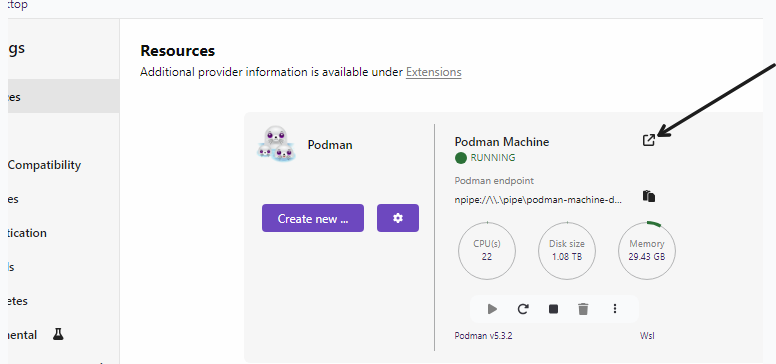
- Execute certificate installation command .
- Stop the Podman machine.
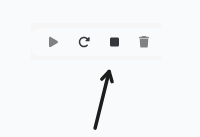
- Start the Podman machine.
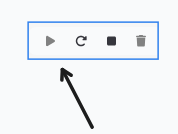
Git
Git is already installed in Ubuntu 22.04 but you need to configure it.
git config --global user.email "you@example.com"
git config --global user.name "Your Name"
NOTE: Cloning Git repository in ssh is authorized from LEAP endpoint, don’t forget to generate new ssh keys.
VSCode
- From Microsoft Store, install Visual Studio Code
- In VSCode, in Extensions, install WSL Extension
You can now connect to your WSL environment. See the official documentation.
Optional: Fancy Terminal
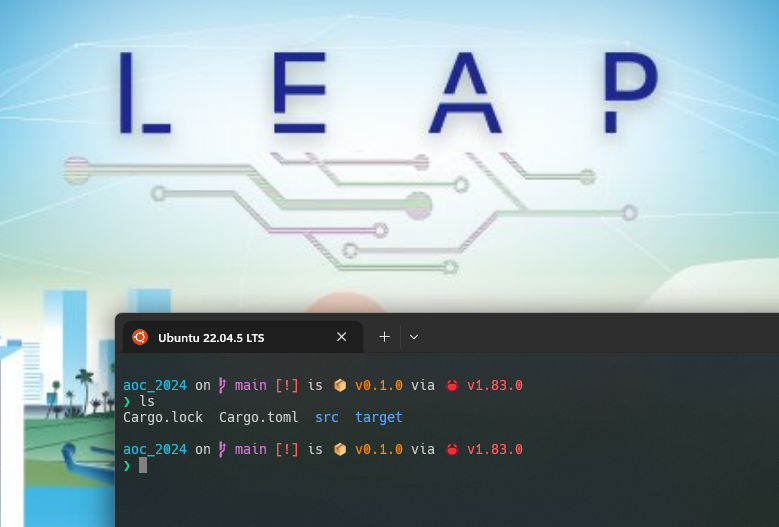
Transform your Windows Terminal into a modern, feature-rich development environment with custom fonts, prompt, and styling.
Nerd Font Installation
Nerd Fonts add developer-focused icons and glyphs to regular fonts, enabling visual features like Git status icons and programming symbols in your terminal. We’ll use Hack Nerd Font, known for its excellent monospace readability.
- Get Hack font
- Install
.ttffiles - Terminal Settings > Ubuntu 22.04 > Appearance > Font > “Hack Nerd Font Mono”
Starship Setup
Starship is a minimal, fast shell prompt that shows contextual information like Git status, current directory, and active environment.
curl -sS https://starship.rs/install.sh | sh
echo 'eval "\$(starship init bash)"' >> ~/.bashrc
Terminal Customization
Select your preferred theme in: Terminal Settings > Ubuntu 22.04 > Appearance > Texte > Jeu de couleurs
For example: Dark+
- Configure Terminal transparency in: Terminal Settings > Ubuntu 22.04 > Appearance > Transparence
- You can set opacity to
90%and enableacrylic mode
Reference
Troubleshooting
Why I see only 50% of my RAM in WSL?
By default, only 50% of total memory is allocated to the WSL virtual machine. You can increase (or decrease) this value in the .wslconfig file .