version v7.2.
For up-to-date documentation, see the
latest version.
EcoCode plugin
3 minute read
Introduction
Welcome to the EcoCode tutorial, an initiative dedicated to fostering sustainability within software development at Thales.
The Software Factory contributes to this initiative by proposing Green Code Initiative’s plugins and adopting innovative and efficient coding practices.
In today’s digital era, software development plays a critical role in shaping our environmental footprint.
Eco Coding is not just about writing efficient code. Learn more about ecodesign practices .
Step 1: Setting Up a Java Project
Get the project from GitLab
Navigate to this project repository from GitLab C2.
For the purposes of this tutorial, we’ll only use the GitLab interface.
The given source code already contains examples of poor eco coding practices, so there is no need to modify the code.
Create the project In SonarQube
You need to have permission to create projects
- On the SonarQube dashboard, select Projects in the top menu.
- Select the Create Project button and choose Local project.
- Fill in the required fields:
- Project Key =
java-ecodesign-tuto - Project Name =
java-ecodesign-tutorial - Main branch name =
ecodesign-exemple
- Project Key =
- Select Next
- Choose a baseline for new code:
- Use the global setting for this tutorial.
The concept of New Code Period is very important. Please understand it thoroughly to set it correctly for real projects.
- Select Create project.
The profile used by the project is THALES-GBU-BL-PROJECT-QUAL.
Step 2: Configuring the EcoCode Plugin in Quality Profile
To ensure our code is analyzed for eco-friendly practices, we need to configure the EcoCode plugin within SonarQube’s Quality Profile.
After logging in to your SonarQube, follow these steps:
View Rules related to Ecodesign:
- From the top menu, select Rules.
- Use the filter options to narrow down the rules:
- At Language, select
Java. - At Repository, select
creedengo-java.
- At Language, select
- You can view the rules and their descriptions.
Updating a Quality Profile
You need to have permission to update Quality Profiles.
We modify the existing profile used by the project to ensure it includes the latest EcoCode rules.
- From the dashboard, navigate to Quality Profiles.
- Select the profile used by the test project THALES-GBU-BL-PROJECT-QUAL.
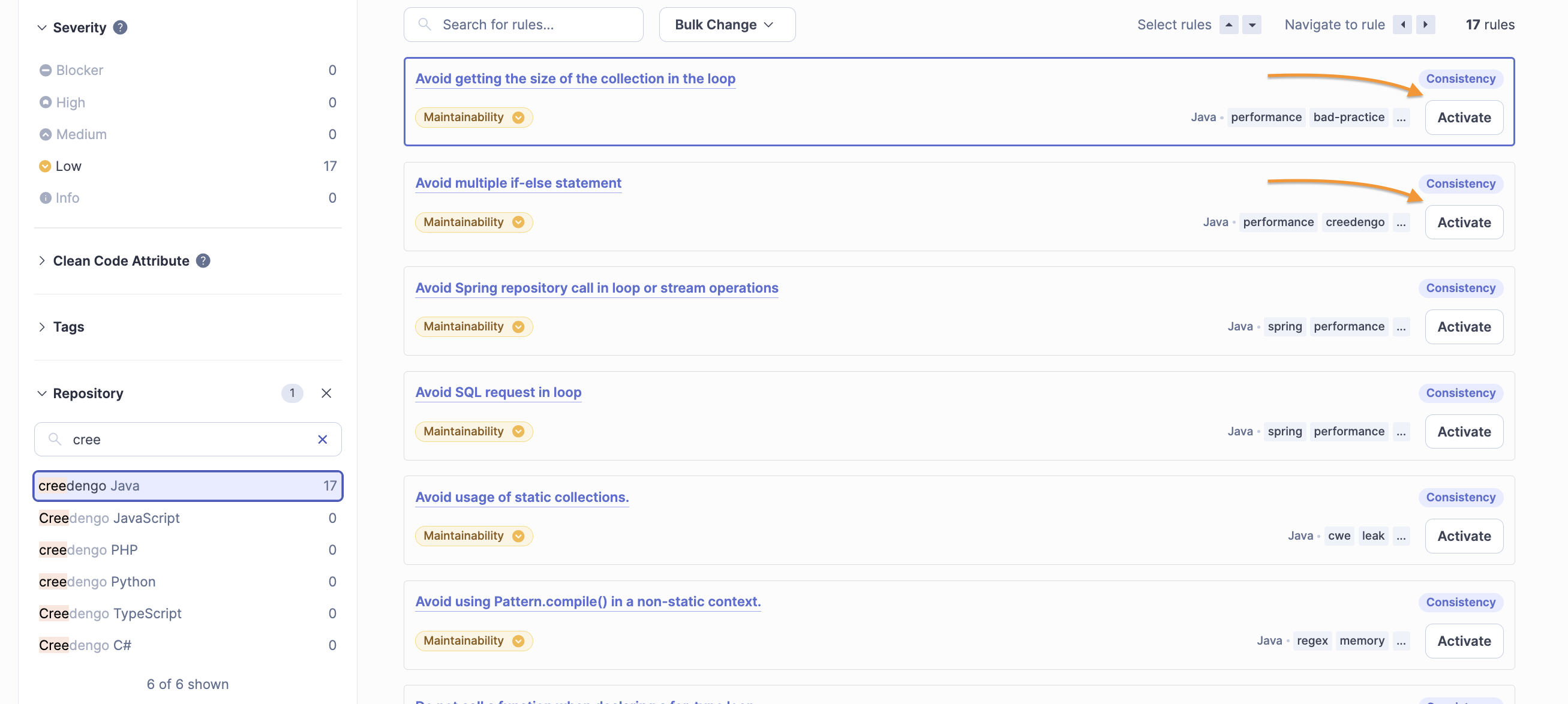
- On the three dots at the right of the screen, select Activate More Rules.

- Search for EcoCode-specific rules by using the same filter options as before.
- At Repository, select
creedengo-java.
- At Repository, select
- Activate the rules that align with your sustainability goals.
Step 3: Running New SonarQube Analysis
- Go back to the GitLab project.
- In the left sidebar, select Build > Pipelines.
- On the Pipelines page, select New Pipeline on the top right corner.
- Select the branch/tag and optionally provide any necessary parameters or variables for your pipeline.
- Select New Pipeline.
Check Results
After the SonarQube scan job completes:
- Navigate to CI/CD > Pipelines and select the detailed view of your pipeline.
- Look for the
sonarqube-scanjob and verify it completed successfully. - Return to your SonarQube instance.
- Navigate to the
ecodesign-exempleproject in SonarQube. - On the Overview tab, select the issues in the Maintainability section.
- Review the analysis results to confirm that EcoCode rules are reporting correctly.
Step 4: Reviewing and Acting on the Results
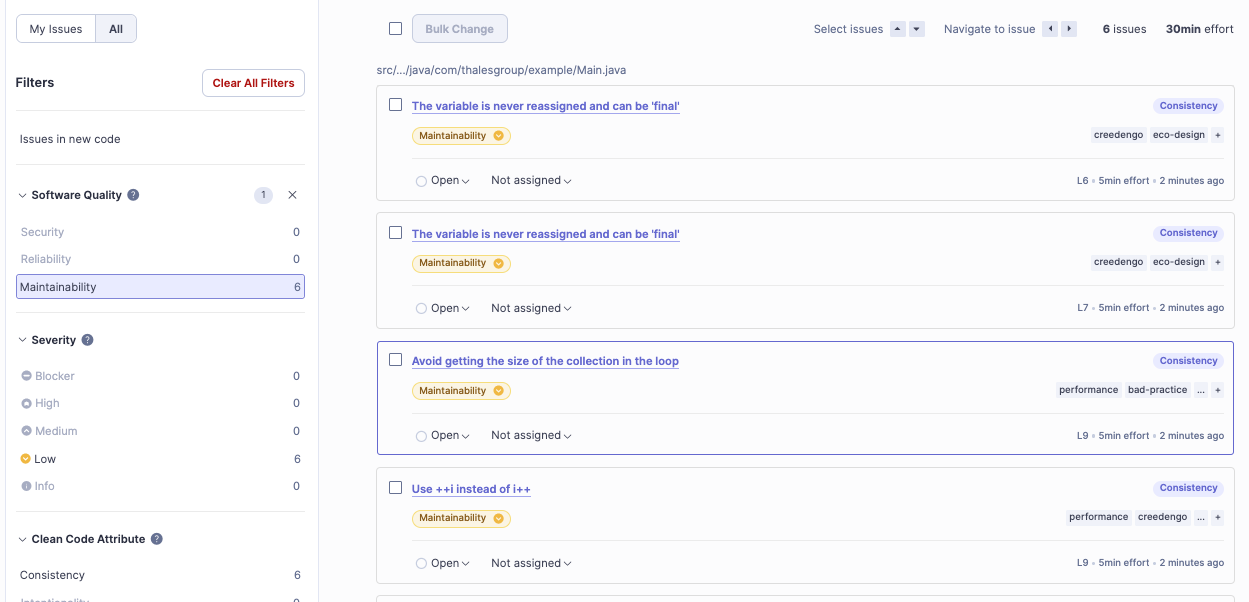
- Navigate to your issues.
- Find the issue titled Avoid getting the size of the collection in the loop.
- Select the issue to view detailed information.
Issue Details
SonarQube identifies that repeatedly calling the size() method of a collection within a loop can result in performance inefficiencies, especially for large collections.
To improve performance, store the size of the collection in a variable before the loop begins, and use that variable within the loop.