version v7.2.
For up-to-date documentation, see the
latest version.
VSCode GitLab extension
4 minute read
Introduction
The GitLab Workflow extension for VSCode enhances your development experience by integrating GitLab functionalities directly into your IDE. This guide will walk you through the installation, configuration, and key features of the extension.
Installation
- Open VSCode
- Go to the Extensions view (Ctrl+Shift+X)
- Search for “GitLab Workflow”
- Select “Install”
For detailed installation instructions, refer to the official extension documentation .
Configuration
To configure the GitLab Workflow extension for use with a private GitLab instance:
- Generate a Personal Access Token in your GitLab instance with the
apiandread_userscopes. - In VSCode, open the command palette (Cmd/Ctrl + Shift + P).
- Search for “GitLab: Add Account” and press Enter.
- Enter the full URL of your GitLab instance (including http:// or https://).
- Paste your Personal Access Token when prompted.
For more detailed configuration steps, see the official setup guide .
Key Features
1. GitLab CI/CD YAML Validation
The extension provides validation for your .gitlab-ci.yml files:
- Syntax highlighting for GitLab CI/CD configuration files
- Manual validation with detailed error reporting and suggestions
- Auto-completion for GitLab CI/CD keywords
To validate your .gitlab-ci.yml file:
- Open your
.gitlab-ci.ymlfile in VSCode - Open the command palette (Cmd/Ctrl + Shift + P)
- Type “GitLab: Validate GitLab CI Config” and select it
- The extension will validate your file and show any errors or warnings in the “Problems” panel
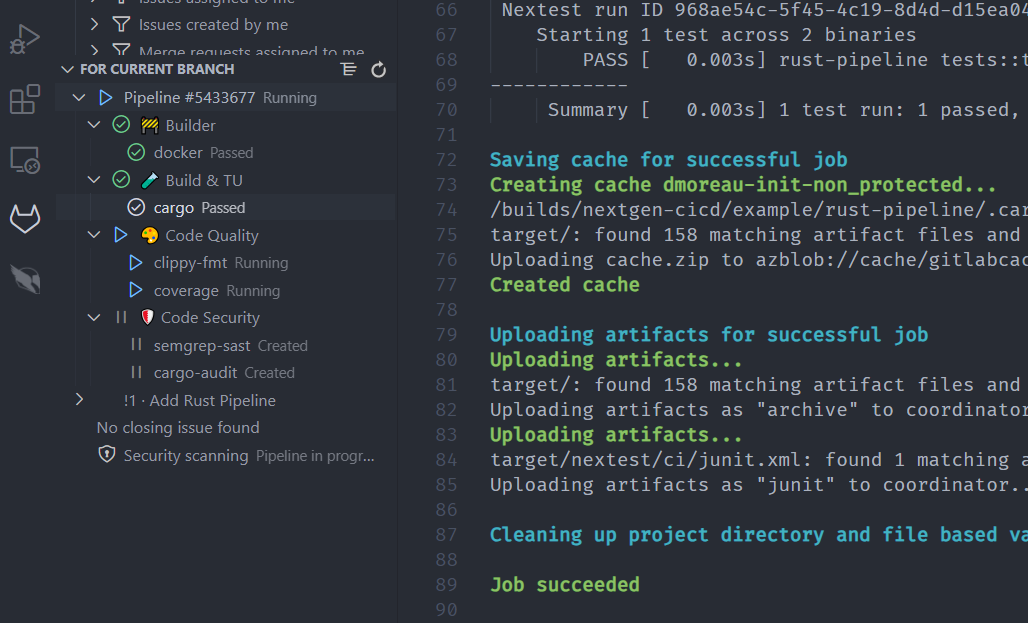
2. Pipeline Status and Logs
Monitor your GitLab CI/CD pipelines directly from VSCode:
- View pipeline status in the VSCode status bar
- Access detailed pipeline information and logs
- Trigger pipeline actions (e.g., retry jobs) from within VSCode
3. Efficient Merge Request Management
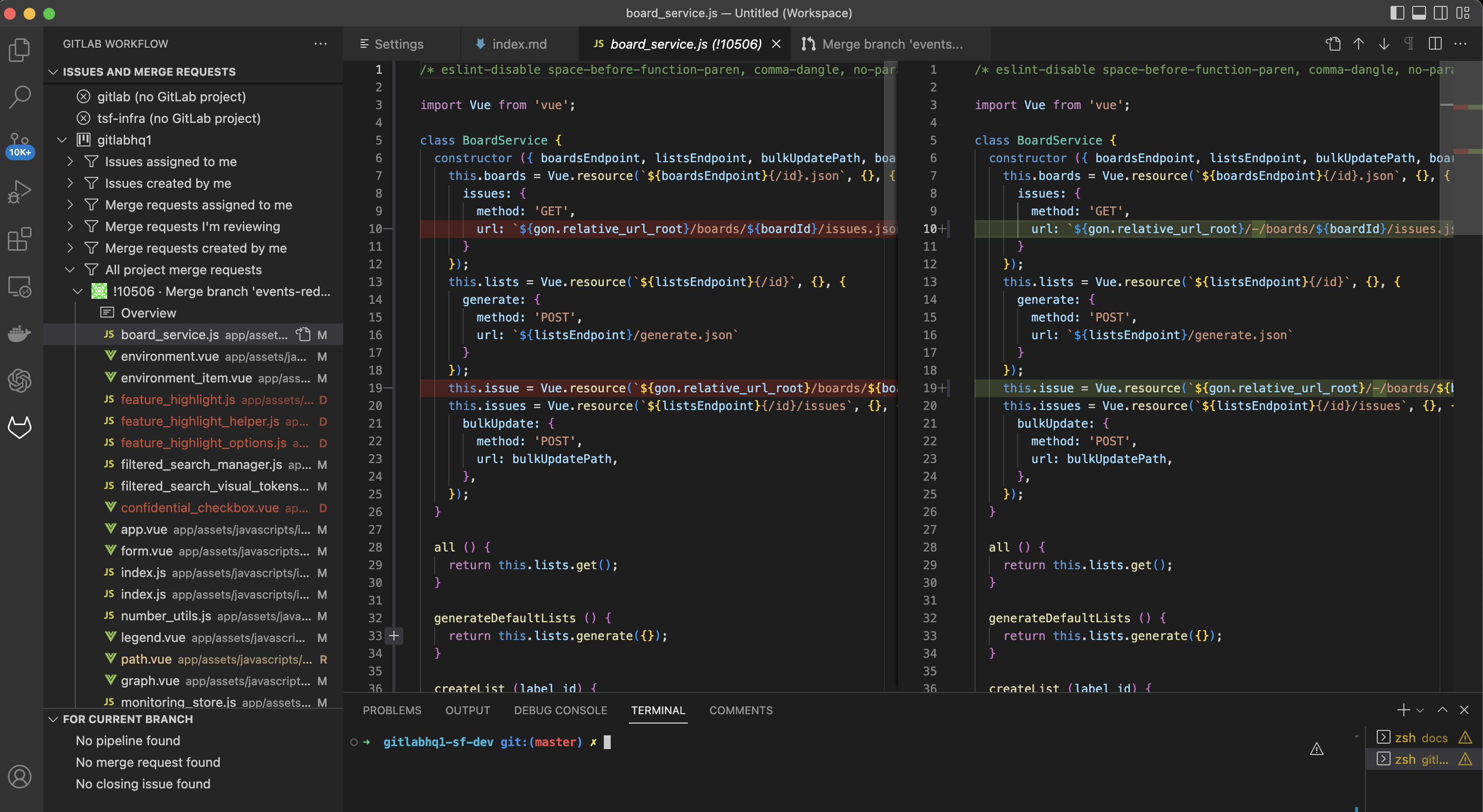
The extension excels at handling large merge requests:
- Browse and review merge requests up to five times faster than the GitLab Web UI
- Benefit from caching for instant loading of previously viewed diffs
- Comment on merge requests directly within VSCode
- Create a merge request
To use this feature:
- Go to the “GitLab Workflow” section in your VSCode sidebar
- Expand your GitLab project
- Select “All project merge requests”
- Select the merge request you want to review
Additional Resources
Note for GitLab C3 Users
If you’re using GitLab C3, an internal GitLab instance, you may need to take additional steps to handle SSL certificate issues:
Option 1: Trust GitLab C3 Server Certificate
Add the GitLab C3 server certificate to your system’s certificate keychain and reload VSCode.
If you encounter the error “failed, reason: unable to verify the first certificate” when using GitLab C3, refer to these certificate handling options.
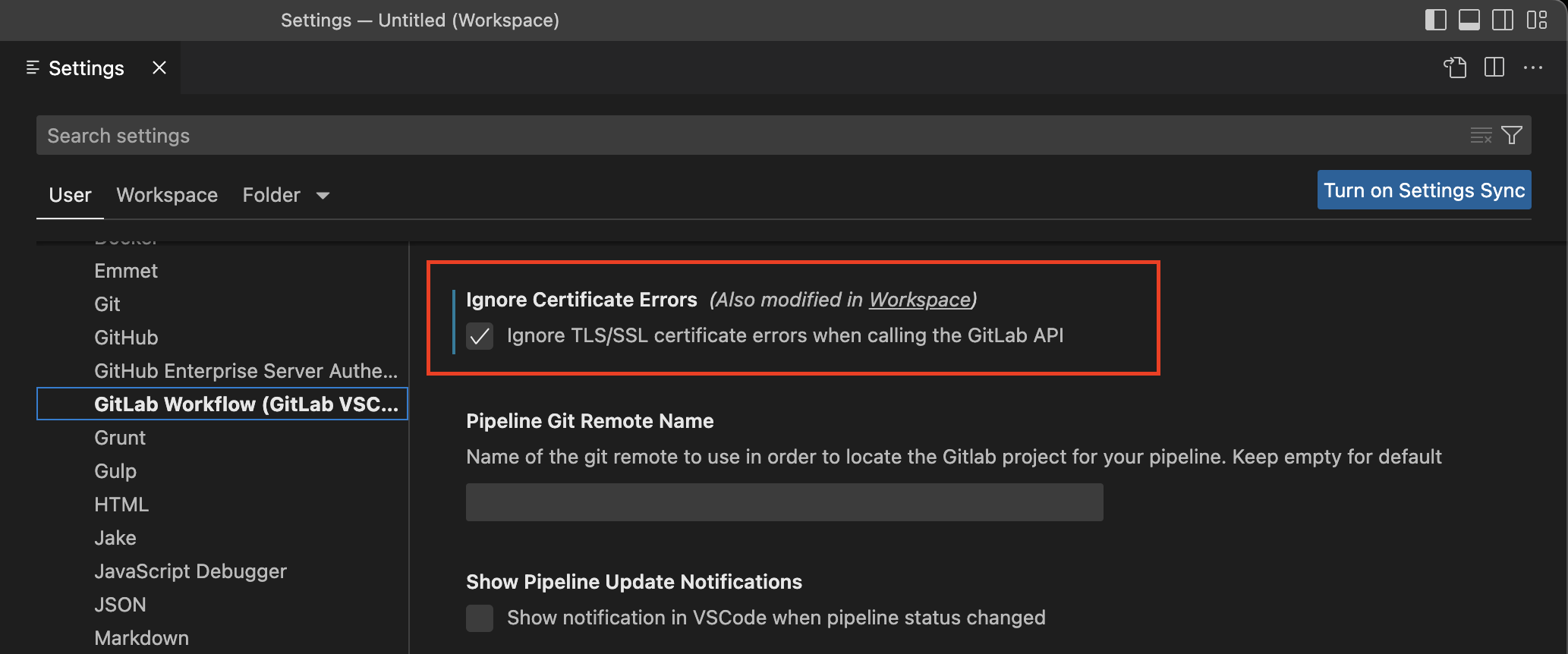
Option 2: Ignore Certificate Errors
- Go to VSCode Settings
- Navigate to Extensions > GitLab Workflow
- Check the box for “Ignore Certificate Errors”
Sharing the extension with your team
Visual Studio Code provides a feature to recommend specific extensions to your team, ensuring a standardized development environment and tools.
This is especially useful to share and integrate GitLab functionalities seamlessly within your team’s development environment.
Manually Handling extensions.json
Create or Edit
extensions.jsonFile:- In your project’s
.vscodedirectory, create or edit theextensions.jsonfile. This is where you will specify the recommended extensions.
- In your project’s
Add Recommended Extensions:
- Include the extension identifiers for the GitLab extensions you want to recommend. Here’s
how you can structure your
extensions.jsonfile:
- Include the extension identifiers for the GitLab extensions you want to recommend. Here’s
how you can structure your
{
    "recommendations": [
        "gitlab.gitlab-workflow",     // Official GitLab extension
        "asciidoctor.asciidoctor-vscode", // Official Asciidoctor extension for AsciiDoc support
        "eamodio.gitlens" // GitLens extension for Git superpowers in VSCode
    ]
}
- Save and Sync:
- Save the
extensions.jsonfile and commit the file to your repository.
- Save the
Adding Directly from Visual Studio Code
- Open the extensions view in VSCode:
- Open the Extensions view by selecting the Extensions icon in the Activity Bar on the side of the window or by pressing Ctrl+Shift+X.
- Use the search bar in the Extensions view to find GitLab-related extensions such as GitLab
Workflow,
asciidoctor-vscode…
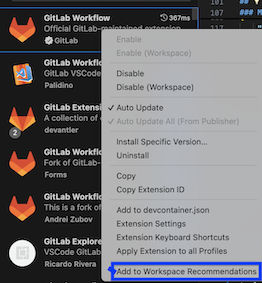
- Add the extensions as recommended
- Right click on
GitLab Workflowand selectAdd to Recommended Extensions - Repeat this step for any other extensions you want to recommend.
- Right click on
- Save and Sync
- Save the
extensions.jsonfile and commit the changes to your repository.
- Save the
When other team members open the project in VSCode, they will be prompted to install the recommended extensions, ensuring everyone has the necessary tools.
For more detailed information, you can refer to on VSCode recommended extensions official page.