version v7.2.
For up-to-date documentation, see the
latest version.
Scrum with GitLab
17 minute read
Introduction
Scrum is an Agile framework for managing complex projects, characterized by iterative development, time-boxed sprints, and regular feedback:
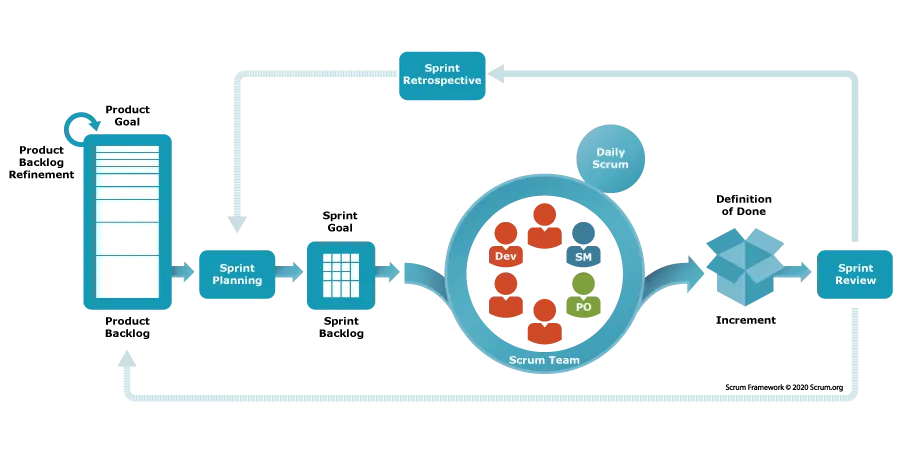
GitLab provides an array of features to support the Scrum process efficiently.
This guide maps Scrum practices and artifacts to GitLab plan’s elements and tools, helping you seamlessly integrate Scrum methodologies into your GitLab workflow.
Product Backlog
The Product Backlog lists everything currently identified as necessary for the product, in order of priority. It is the single source of requirements for any changes to be made to the product.
In GitLab, the Product Backlog is managed through Issues (sprint-level items) and Epics (strategic-level items).
Backlog Items
GitLab uses work items to represent all types of work across different organizational levels.
Issues
In GitLab, each sprint-level activity is represented by an Issue . Issues are used for user stories, bugs, tasks, and any work that can be completed within a sprint.
In GitLab, issues have no built-in type field. If needed, use scoped labels to distinguish different types of work.
For example:


Epics
In GitLab, Epics are used to group related issues and organize work hierarchically. Epics support nesting, allowing you to create a multi-level hierarchy.
GitLab supports the following hierarchy:
Epic (top level)
└── Epic (nested)
    └── Issue
        └── Task
Different Agile frameworks use different terminology (Epic, Capability, Feature, etc.).
In GitLab, you use the Epic work item type for all levels and distinguish them with scoped
labels:


This approach provides flexibility while maintaining a consistent structure in GitLab.
Work Item Attributes
The following attributes apply to both issues and epics, providing consistent ways to manage and track work across organizational levels.
Story points
Issues have a Weight field that allows teams to estimate effort and calculate iteration capacity.
When filling the weight field in GitLab, use the Fibonacci sequence (capped at 5 for simplicity): simple = 1, small = 2, medium = 3, complex = 5.
Weight is NOT a measure of time (days or hours). Instead, it represents the complexity and uncertainty of the work relative to other issues. Focus on qualitative assessment rather than precise numbers. Ask: “Is this issue simple, small, medium, or complex?”
Epics do not have a directly editable weight field. Instead, the epic’s weight is automatically calculated as the sum of all child issues’ weights.
Priority
GitLab does not have a built-in “Priority” field at the issue/epic level like Jira. Instead, priority is managed through labels using two complementary features:
Label Priority
You can set label priority at the project level by starring labels in Manage > Labels. Starred labels appear in a “Prioritized Labels” section where you can drag and drop them to define their relative priority order.
Label priority can only be set at the project level, not at the group level.
Sorting by Priority
When sorting by priority in the issues list, GitLab orders issues as follows:
- Issues with milestones with due dates (closest first)
- Issues with milestones without due dates
- Issues with prioritized labels (highest priority first)
- Issues without prioritized labels
Using Scoped Labels for Priority
For a more explicit approach, teams can use scoped labels at the group level with the MoSCoW
prioritization method:


Provides clearer decision-making than high/medium/low by explicitly defining what’s essential vs. optional for each iteration.
Status
GitLab work items have a native Status field to track lifecycle progression. Use it as your primary workflow tracking tool.
Beyond the default statuses, you can define custom statuses
to match their specific workflow
for example, adding Blocked or In review stages.
For work item types not yet supported by the Status field (currently epics), use scoped labels as a fallback:


Health Status
For tracking work item risk, use Health Status:
 On track:
Progressing as expected
On track:
Progressing as expected Needs attention: At risk,
may need help
Needs attention: At risk,
may need help At risk: Blocked or
seriously behind
At risk: Blocked or
seriously behind
Health status is particularly useful during daily stand-ups to quickly identify work items that need team attention.
Assignee
GitLab supports multiple assignees on both issues and epics, unlike Jira which limits issues to a single assignee.
Multiple assignees facilitate collaboration and shared ownership. All assignees receive notifications and are visible across workflows.
Time Tracking
Time tracking helps measure effort and manage time invested in GitLab work items like issues, merge requests, and epics.
GitLab provides intuitive time tracking through fields in the right sidebar where you can log:
- Set estimates
- Log time spent
- View remaining time
- Access detailed time tracking reports.
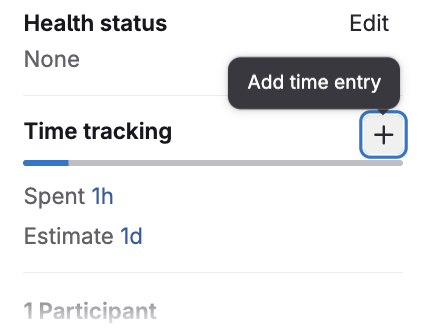
Use quick action shortcodes like /estimate 3h to set time needed and /spend 2h30m to log work
directly in comments or even automatically through commit messages( <commit message> @1h30m #issue-references).
You can find more on permissions, time units, and advanced features in Time Tracking Official Guide .
Definition of Ready and Definition of Done
Establishing clear Definitions of Ready (DoR) and Done (DoD) ensures quality and reduces misunderstandings.
To share templates across multiple projects, navigate to Settings > General > Templates at the group level, where you can specify which repository contains your centralized templates.
Using a centralized template repository at the group level ensures consistency across all projects and simplifies template maintenance.
Backlog Views
GitLab provides multiple views to manage your Product Backlog.
Issues List View
The Issues list (Plan > Issues) provides a comprehensive, filterable view of all issues across your team’s projects:
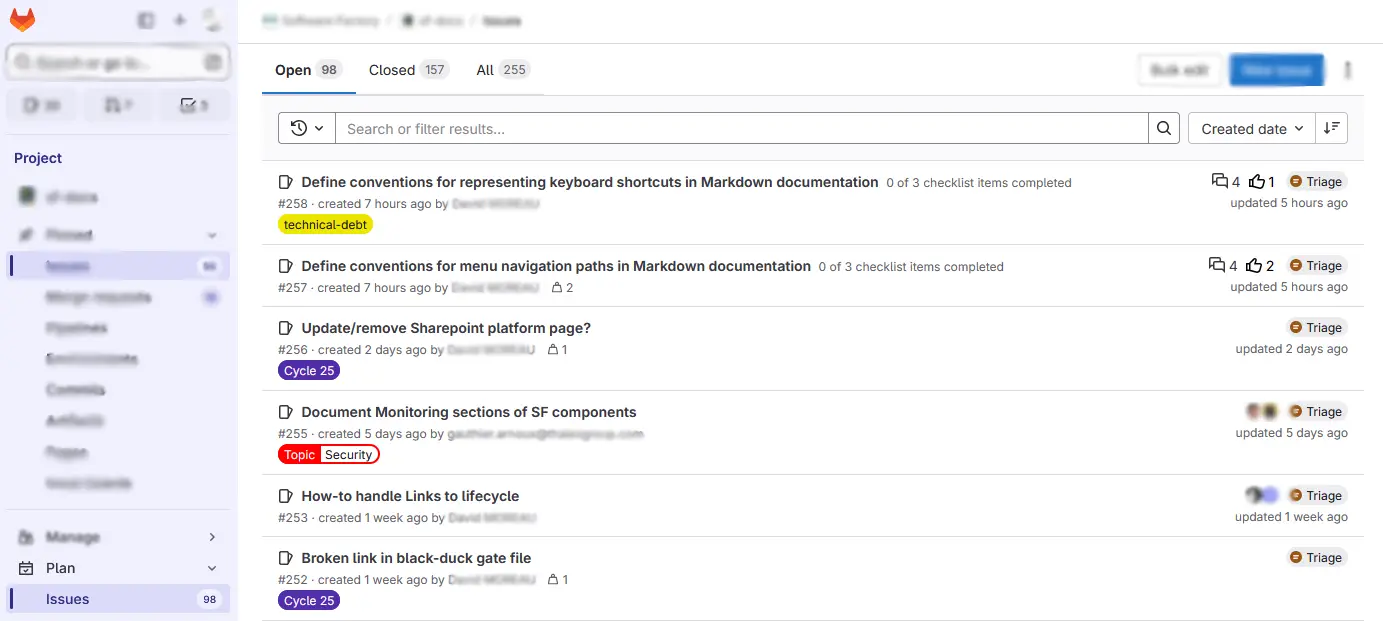
Use this view for:
- Reviewing all unassigned issues during backlog refinement
- Bulk editing issue attributes (weight, labels, assignees)
- Exporting issue lists for reporting
- Finding specific issues quickly
Epics List View
The Epics list (Plan > Epics) provides a comprehensive, filterable view of all epics across your group and its projects.
Capabilities
- Filter by status, author, labels, or custom attributes
- Sort by priority, dates, or weight
- Export epic lists for reporting
- View epic progress based on child issues
Epics Board
Epic boards (Plan > Epic boards) provide a Kanban-style visual representation of your
feature workflow.
Your epics appear as cards organized in vertical lists (columns).
On the top of each list, you can see the number of epics in the list ( ) and
the total weight of all its epics (
) and
the total weight of all its epics ( ).
).
Capabilities
- Drag and drop epics between workflow stages
- Visualize feature flow and identify bottlenecks
- Filter board by labels, assignee, or other attributes
- Track progress of multiple features simultaneously
- Set limits (number of issues or total weight) on each list (column)
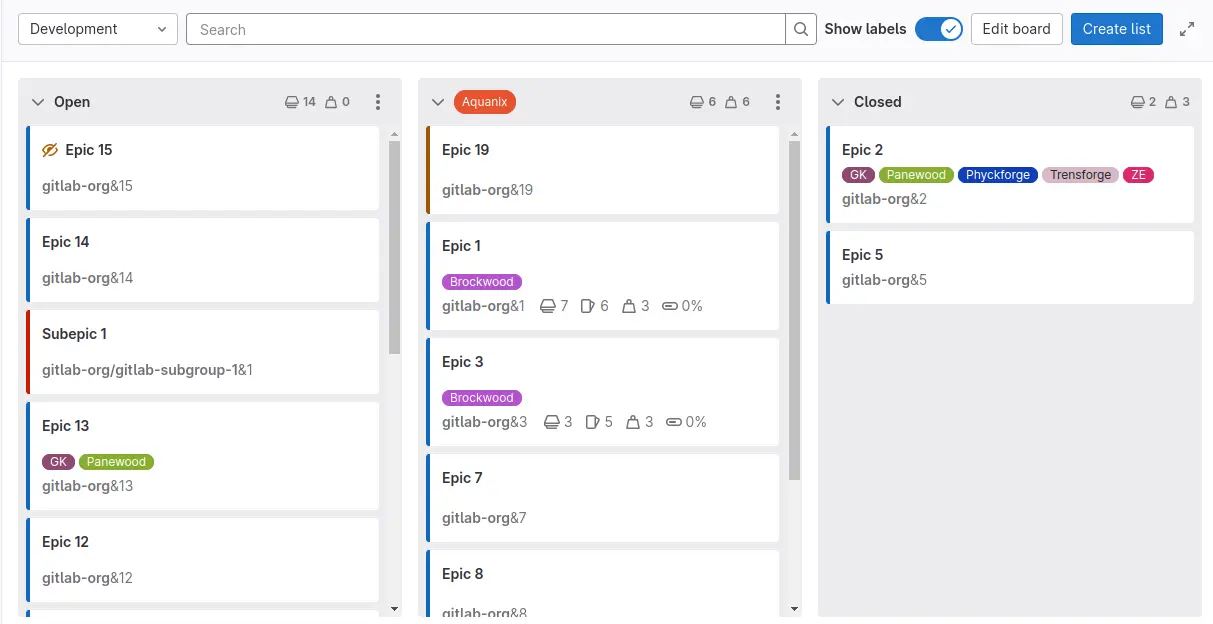
For more details, see Epic boards documentation .
Team Setup
To effectively manage your Product Backlog, Scrum teams using GitLab benefit from establishing a clear organizational structure using groups and projects.
Group and Project Structure
The recommended approach is to create one group per team, which reinforces the notion of ownership and provides a centralized location for team activities.
More information in GitLab Groups documentation .
Why One Group Per Team?
- Centralized Management: The group serves as the primary location for boards, epics, labels, and iteration cadences
- Inherited Configuration: Labels, milestones, and iterations cascade down to all projects within the group
- Team Ownership: All projects managed by the team reside within the team’s group
- Unified View: Team members can see all work across projects in a single location
Recommended Structure
team-a/                         # Group for Team A
├── team-a-backlog              # Project for non-code issues
├── team-a-service-backend      # Project for backend service
├── team-a-service-frontend     # Project for frontend service
└── team-a-infrastructure       # Project for infrastructure code
Project Association
In GitLab, an issue must belong to a specific project (which corresponds to a Git repository). If the issue relates to a code change in a known repository, create the issue directly in that project. For issues not yet tied to a specific repository, create them in the team’s backlog project. Issues can be moved to the appropriate project later when the target repository is identified.
Issues can be moved between projects as needed when the target repository becomes clear
Integration with Development
One of GitLab’s key differentiators is the tight integration between planning (issues) and code development (merge requests, CI/CD). This integration enables traceability from sprint planning through production deployment.
Creating and Linking Merge Requests
GitLab provides two ways to connect issues with code changes:
- Create a merge request from an issue
Use the “Create merge request” button directly from the issue view. GitLab automatically creates a branch and links the merge request to the issue.
- Link an existing merge request
Reference the issue in the merge request description using #123 or keywords like Closes #123,
Fixes #123, or Resolves #123.
When linked, the issue displays the merge request status, providing immediate visibility into implementation progress. The issue also shows CI/CD pipeline status (passed, failed, running) from linked merge requests, allowing teams to track test results without leaving the issue view.

Automatic Issue Closure
When using closing keywords (Closes #123, Fixes #123, Resolves #123) in merge request
descriptions, GitLab automatically closes the linked issue when the merge request is merged.
If an issue has multiple linked merge requests, the issue closes only when all merge requests are merged, ensuring the work is fully complete before removing it from the active sprint.
This automation keeps the issue board and burndown charts accurate without manual intervention.
Sprint
A Sprint is a time-boxed iteration during which a potentially releasable product increment is created. In GitLab, sprints are managed through Iterations.
Iteration and Cadence
In GitLab, sprints are called Iterations. An iteration is a time-boxed period during which a team works on a set of issues.
Iteration Cadences (Plan > Iterations), created at the group level, are the containers for your sprints. A cadence defines the recurring pattern for your iterations (e.g., 2-week sprints) and automatically generates the individual, sequential iteration timeboxes.
Capabilities
- Iterations cascade down the group, subgroup, and project hierarchy
- Configure once at the group level and all child projects inherit the cadence
- Support for automated iteration creation based on the defined pattern
- Issues can be assigned to a specific iteration within a cadence
For more details, see Iterations Documentation .
Boards
Issue boards provide flexible, visual Kanban-style views for different purposes. You can create multiple boards at the group level, each tailored to a specific workflow or ceremony.
Below are some common examples of boards that you can create.

Sprint Planning Board
Use this board to assign issues to upcoming sprints and balance workload across iterations. Create one column per iteration (sprint) to visualize capacity planning.
This board enables you to:
- Drag and drop issues between sprint columns
- View total weight () per sprint column to balance capacity
- Identify under/over-committed sprints at a glance
- Set limits (number of issues or total weight) on each column
T-Shirt Sizing Board
Use this board for quick effort estimation during backlog refinement. Create scoped labels representing t-shirt sizes (XS, S, M, L, XL) and configure one column per size.
This board enables you to:
- Rapidly estimate issue complexity by dragging them between size columns
- Get quick visual feedback on effort distribution
- Apply rough sizing for epics or issues during initial refinement
- Balance effort before detailed story point estimation
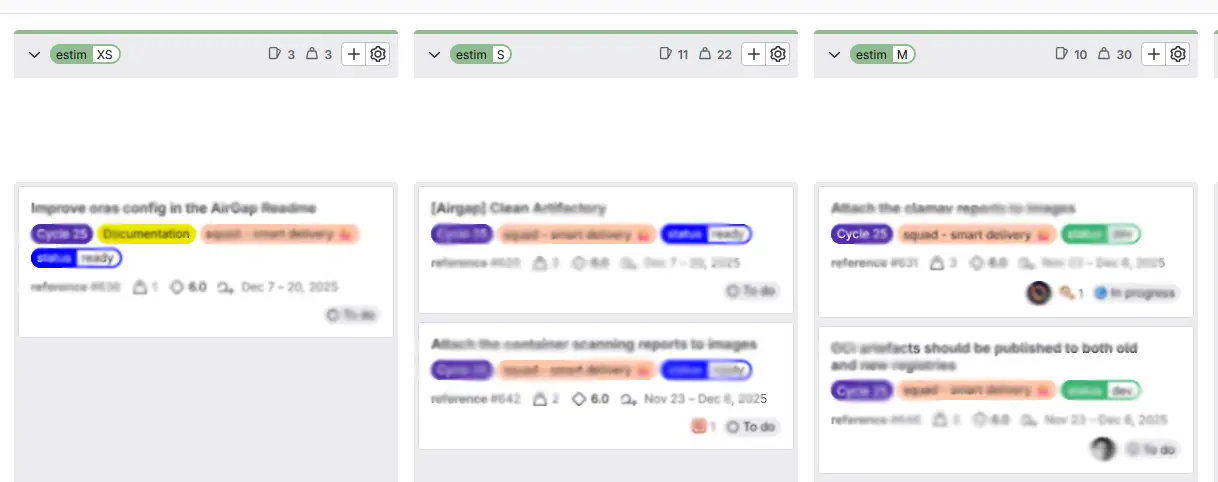
T-shirt sizing is useful as a first-level refinement technique for both epics and issues before applying more precise story point estimates.
More details in GitLab Issue Boards Documentation .
Sprint Board
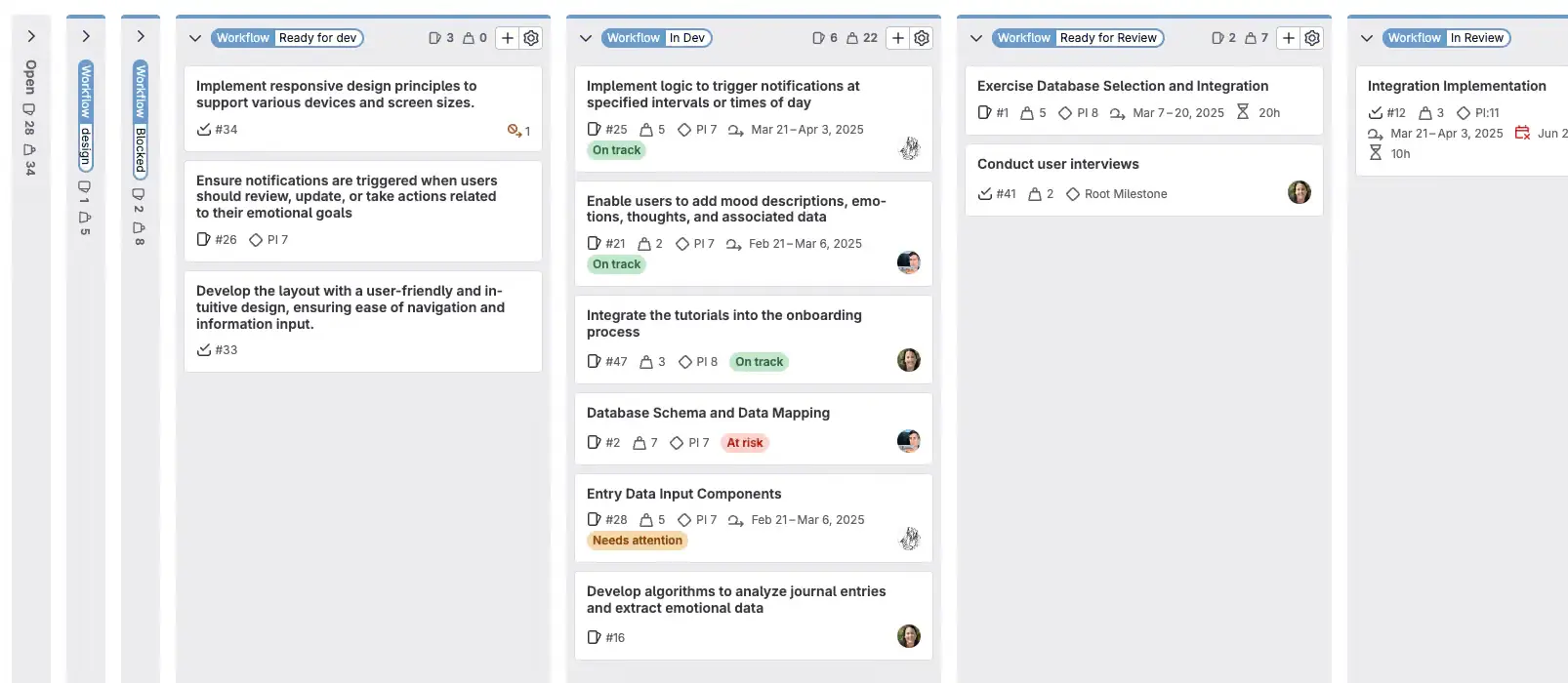
Track daily progress within the active sprint using a visual Kanban board filtered to show only the current iteration’s work.
Where possible, align your board columns with the native Status field (for example, To do, In progress, Done) to keep your visual workflow consistent with the lifecycle state of your issues.
This board enables you to:
- Monitor work in progress (WIP) and identify bottlenecks
- Visualize team progress during daily stand-ups
- Track issues as they move through workflow stages ( …)
- Quickly identify blocked or at-risk work items
- Set WIP limits per column to manage flow
For more details, see Issue Boards Documentation .
Progress Tracking
GitLab provides tools to track sprint execution and monitor team progress.
Burndown and Burnup Charts
Iterations provide burndown and burnup charts to track progress over time. These complementary visualizations serve different purposes:
Burndown Chart
- Focuses on tracking completion progress toward the goal
- Shows how much work remains to be done over time
- Ideal for answering: “Are we on track to finish on time?”
Burnup Chart
- Tracks both completed work and total scope as two separate lines, making scope changes immediately visible
- Shows if delays are due to slow progress or to increases in scope during the timebox
- Ideal for answering: “How much have we accomplished, and has the scope changed?”
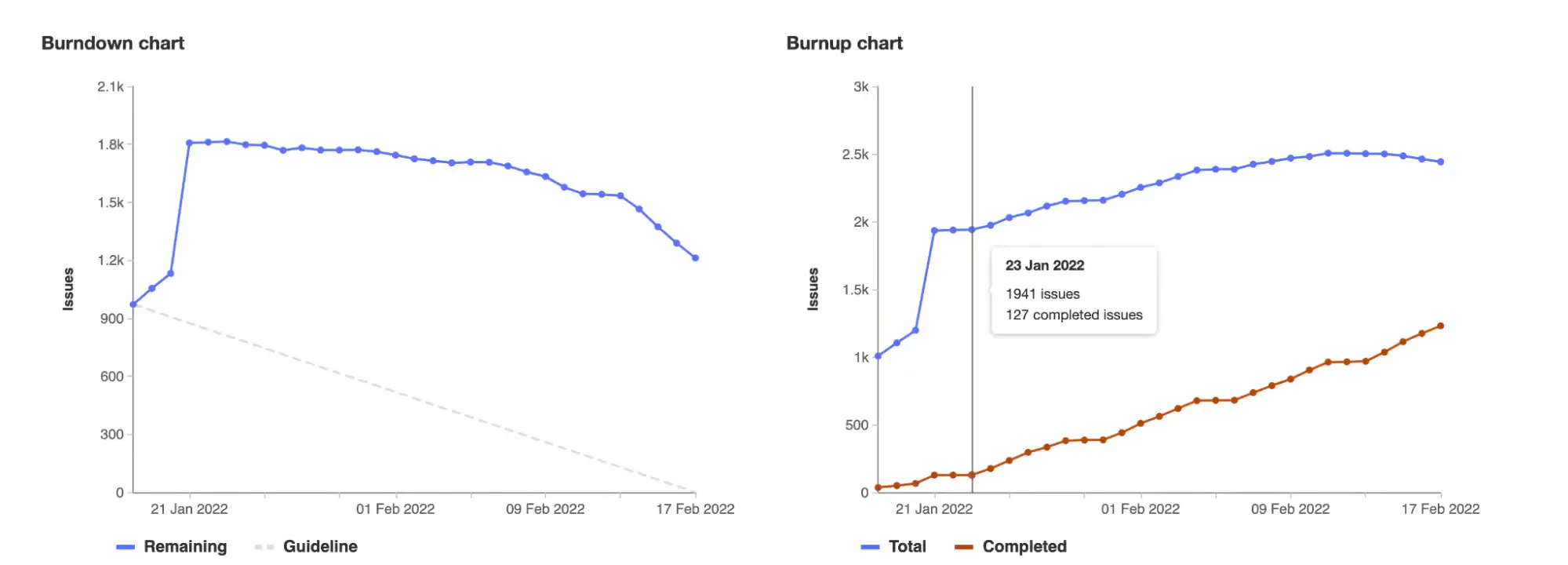
A burndown chart may display a flat line when scope is added during a sprint, even if the team maintained their velocity. The burnup chart avoids this issue by clearly separating work completed from total scope, providing better transparency when requirements evolve during the iteration.
Navigate to Plan > Iterations > Select an iteration to view the iteration report .
Releases
For tracking progress over a timeframe longer than a sprint, GitLab provides mechanisms for release planning and long-term roadmap visualization.
Milestones
GitLab provides Milestones (Plan > Milestones) to track releases, product versions, or Program Increments in frameworks like SAFe.
Capabilities
- Each Issue, Epic, or Merge Request can be assigned to a milestone
- Start and end dates are fixed and manually defined when the milestone is created
- Milestones can be created at either the project or group level
- The milestone view provides burnup and burndown charts to track progress
Difference from Iterations
- Milestones represent a fixed delivery target or planning horizon (e.g., “Q1 Release”, “PI 2024.3”)
- Iterations represent recurring work cycles within those larger timeframes (e.g., “Sprint 42”, “Iteration 2024-W15”)
A typical workflow combines both: issues are assigned to a milestone for long-term release planning and to an iteration for sprint-level execution tracking.
For example, an issue might belong to the
Q3 Releasemilestone and theSprint 24iteration.
Roadmap
Epics in a group containing a start date or due date can be visualized in a form of a timeline.
The roadmap (Plan > Roadmap) in GitLab provides a high-level overview of the planned work and progress of epics and milestones in a timeline view (that is, a Gantt chart).
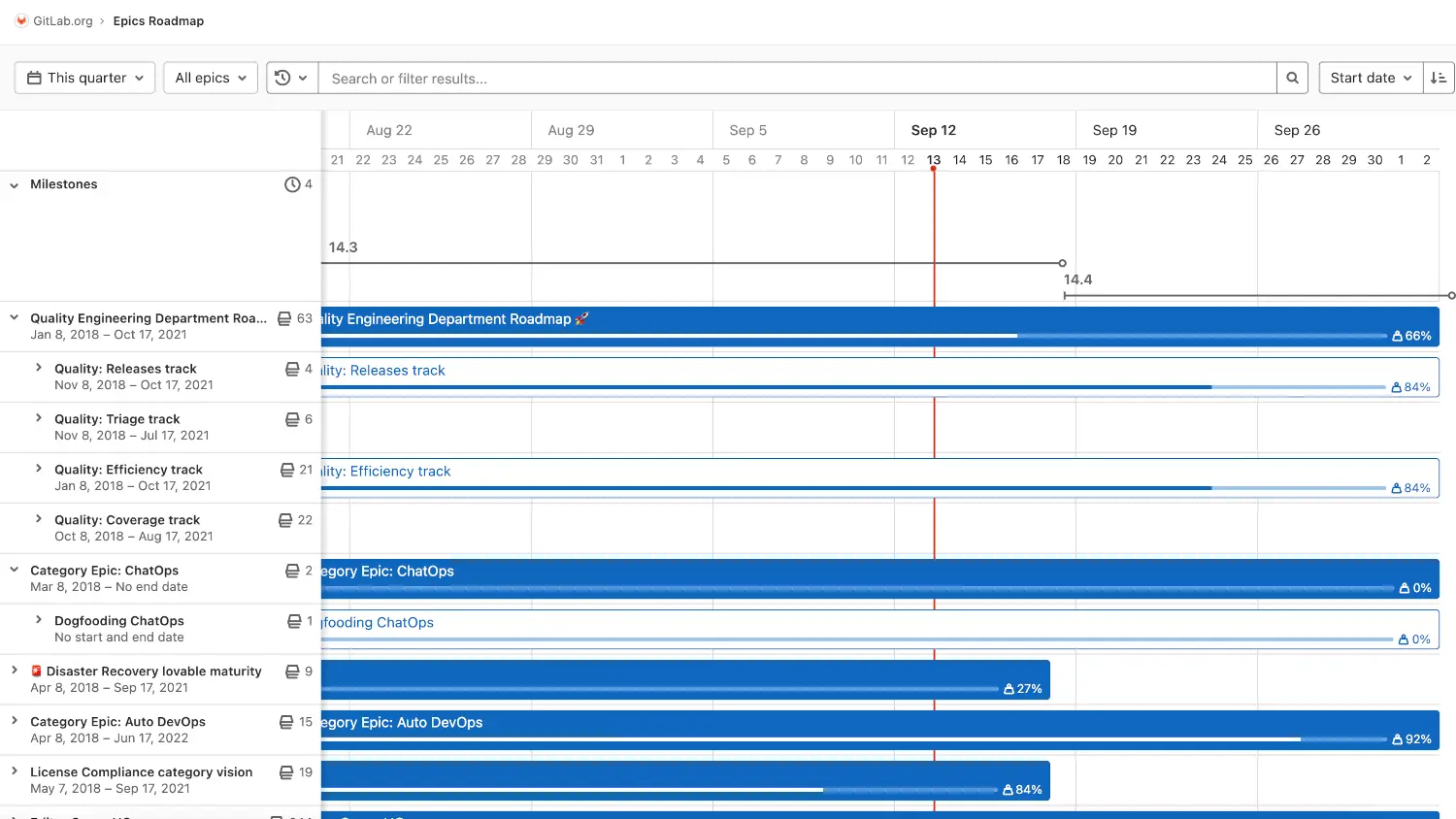
The start and end dates of each epic are defined by their corresponding fields in GitLab. Two date modes are available:
- Fixed dates: Dates are entered directly in the epic fields
- Inherited dates: Dates are automatically calculated based on the earliest start date and latest end date of child epics and issues
The epic’s end date is manually defined and does not reflect the actual workload, effort estimates, or completion status of its child items. This means that an epic with fixed dates may show as “complete” on the roadmap even if its child issues are still in progress. Regular manual updates are required to maintain accuracy.
Progress displayed on each epic is based on issues status (Open/Closed) and issues weight.
For more details, see Roadmap documentation .
Ceremonies Quick Reference
This table provides a quick reference mapping Scrum ceremonies to the GitLab tools described in this guide. Use this as a starting point for your team’s ceremonies, adapting the tools and workflows to fit your specific needs.
| Ceremony | GitLab Tools |
|---|---|
| Backlog Refinement | Issues List View • Epics List View |
| Sprint Planning | Issues List View • Sprint Planning Board |
| Daily Stand-up | Sprint Board • Burndown/Burnup Charts |
| Sprint Review | Burndown/Burnup Charts • Iteration Report |
Comparison with Jira
For teams migrating from Jira to GitLab, this section provides a comprehensive comparison of terminology, features, and capabilities.
Components
In Jira, Components are used to categorize issues within a project, representing sub-areas of work such as a service, module, or functional domain.
GitLab does not have a built-in “Component” field, but two approaches cover this need depending on the scope of the component:
Option 1: GitLab Project (when the component maps to a repository)
In GitLab, every issue belongs to a specific project (repository). When a Jira component maps directly to a codebase, creating the issue in the corresponding GitLab project naturally replaces the component concept — no extra configuration needed. This is one of GitLab’s strengths: project ownership is built-in.
Option 2: Label (when the component spans multiple projects)
When a Jira component represents something broader than a single repository (e.g., a functional area, a platform layer, or a cross-cutting concern), use a group-level label to represent it. Labels can be applied across all projects within a group, enabling cross-project filtering and reporting.
Issue Visibility
In Jira, issue visibility can be controlled with fine granularity through permission schemes: specific issue types or individual issues can be hidden from certain roles while remaining visible to others.
In GitLab, visibility operates at two levels:
- Project visibility (Public, Internal, Private): controls who can access the project and its issues at all
- Confidential issues: an issue can be marked as confidential, making it visible only to project members with Reporter role or above, plus the issue author and assignees
There is no mechanism to hide a specific issue from a given role within the same project. For example, it is not possible to make an issue visible to Maintainers but hidden from Developers.
For an overview of GitLab roles and what each one can do, see Members & Roles .
Sprint Capacity and Time Tracking
In Jira, sprint capacity can be configured in detail: teams can define the number of working days per sprint and exclude non-working days (public holidays, planned days off), which is then factored into velocity and capacity calculations.
In GitLab, iterations are defined by a fixed calendar period (start date and end date). There is no concept of working days: the duration is always the raw number of calendar days, with no way to account for holidays or days off. Capacity is tracked exclusively through issue weight (story points), and burndown/burnup charts plot progress against calendar time only.
Similarly, time tracking in GitLab (estimates and time spent) is independent from iteration capacity: logged time does not feed into any sprint-level capacity report.
Dashboards
Jira provides highly customizable dashboards where you can add various gadgets (widgets) to display charts, filters, statistics, and other project information in a single view.
GitLab does not have a direct equivalent to Jira’s dashboards. Instead, GitLab provides analytics and monitoring capabilities through:
- Value Stream Analytics - Measure team velocity and identify bottlenecks
- Insights - Create custom charts and reports
- Contribution Analytics - Track team contributions and activity
- Individual views like burndown/burnup charts and issue boards
For custom reporting needs, consider using the GraphQL API to build tailored dashboards.
Swimlanes
In Jira, swimlanes can be configured on any board based on any JQL query (by epic, assignee, custom field, or any arbitrary filter), offering great flexibility.
In GitLab, swimlane support depends on the board type:
Issue Boards (GitLab Premium+): Swimlanes are supported and group issues horizontally by their parent epic, adding an extra dimension alongside the column-based workflow. No other grouping criteria is available.
Epic Boards: Swimlanes are not supported.
If your team needs swimlanes based on criteria other than epics (e.g., by assignee or component), consider using separate boards with filters as an alternative — one board per context.
Quick Filters
In Jira, Quick Filters are predefined one-click filters displayed directly on the board, allowing team members to instantly narrow the view (e.g., “My Issues”, “Recently Updated”).
GitLab does not provide quick filters on boards. Filtering must be applied manually each time using the filter bar.
Card Layout
In Jira, the card layout on a board is fully configurable: you can choose which fields appear on each card, including any custom field, up to a set limit.
In GitLab, the card layout on issue boards offers limited customization. Cards always display the issue title, assignee, milestone, and weight. The only configurable option is whether labels are shown or hidden on the card.
Epic board cards follow the same principle: the displayed fields (title, labels, health status, dates, child progress) are fixed and cannot be customized.
JQL
Jira Query Language (JQL) allows advanced searches with complex filters, operators, and custom fields.
GitLab provides three alternatives:
- Native Search and Filters
- Built-in UI filtering via the Global Search and filter bars in Issues/Epics lists.
- GitLab Query Language (GLQL)
- GLQL for filtering work items with structured syntax. Available across all tiers since GitLab 18.3. Supports embedding filtered results in Markdown (wikis, issue descriptions). More limited than JQL but suitable for most filtering needs.
- GraphQL API
- GraphQL API for advanced queries, automation, custom dashboards, and bulk data extraction. Most flexible option but requires technical knowledge.