version v7.2.
For up-to-date documentation, see the
latest version.
Code Companion - Prompts
3 minute read
How to Create and Manage Prompts
Prompts are used to kick off tasks for Agent mode, Plan mode, and Chat mode
Prompts are included as user messages and are especially useful as instructions for repetitive and/or complex tasks.
Creating Prompts
You can create prompts in two ways:
1. Through the UI
Open the Code Companion sidebar in your IDE.
Go to the Rules section by selecting on the pen icon above the chat.
Click the “+” button to Add a Prompt.
Fill in:
- Name – how it will appear in the
/menu - Description – short explanation of what it does
- Invokable – set this to
trueif you want to use it as a slash command
- Name – how it will appear in the
Add your prompt body in Markdown in the editor area.
Save.
The prompt will now be available when you type/in Chat, Plan, and Agent mode.
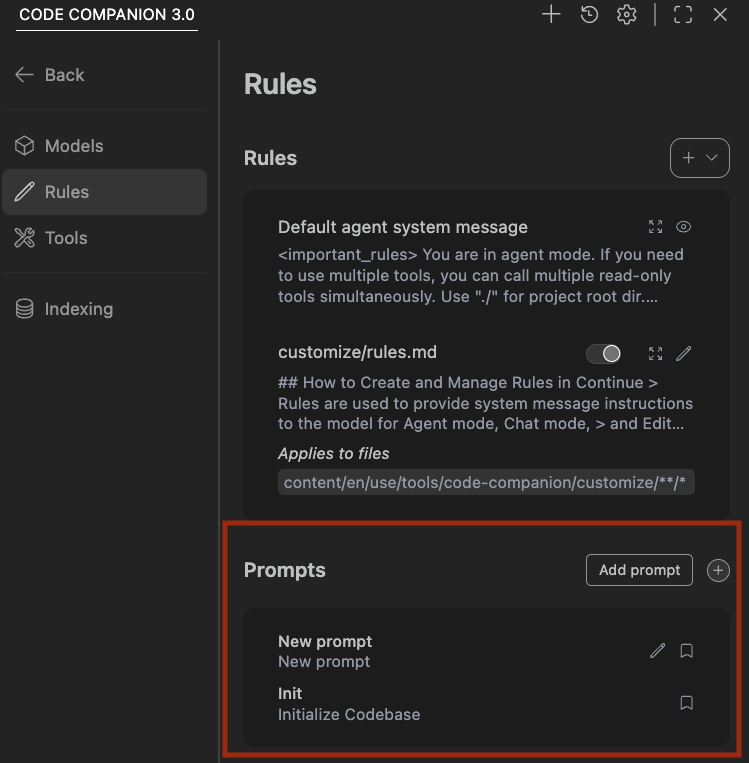
The UI saves these prompts into
.continue/promptsin your workspace.
2. Manually via .continue/prompts
You can also create prompts by adding Markdown files directly:
In the workspace root, create
.continue/prompts/new-prompt.md.Add frontmatter and your instructions, for example:
---
name: My Custom Prompt
description: Helps me do X in this project
invokable: true
---

Your prompt instructions go here.
Any Markdown file under .continue/prompts with valid frontmatter will be loaded as a prompt and,
if invokable: true, will appear as a /My Custom Prompt slash command.
Example: Create Supabase functions prompt
Here is a prompt that generates high-quality PostgreSQL functions that adhere to best practices:
---
name: Create Supabase functions
description: Guidelines for writing Supabase database functions
invokable: true
---

# Database: Create functions

You're a Supabase Postgres expert in writing database functions. Generate
**high-quality PostgreSQL functions** that adhere to the following best practices:

### General Guidelines

1. **Default to `SECURITY INVOKER`:**

   - Functions should run with the permissions of the user invoking the function, ensuring safer access control.
   - Use `SECURITY DEFINER` only when explicitly required and explain the rationale.

2. **Set the `search_path` Configuration Parameter:**

   - Always set `search_path` to an empty string (`set search_path = '';`).
   - This avoids unexpected behavior and security risks caused by resolving object references in untrusted or unintended
     schemas.
   - Use fully qualified names (e.g., `schema_name.table_name`) for all database objects referenced within the function.

3. **Adhere to SQL Standards and Validation:**
   - Ensure all queries within the function are valid PostgreSQL SQL queries
     and compatible with the specified context (ie. Supabase).
To use this prompt, you can open Chat / Agent / Edit, type /, select the prompt,
and type out any additional instructions you’d like to add.