version v7.2.
For up-to-date documentation, see the
latest version.
Code Companion - Rules
4 minute read
How to Create and Manage Rules in Continue
Rules are used to provide system message instructions to the model for Agent mode, Chat mode, and Edit mode requests
Rules provide instructions to the model for Agent mode , Chat , and Edit requests.
Rules are not included in autocomplete
How Rules Work
You can view the current rules by selecting the pen icon above the main toolbar:

To form the system message, rules are joined with new lines, in the order they appear in the toolbar.
How Rules Are Applied
When using Code Companion, rules are loaded in this order:
- Local workspace rules (from
.continue/rulesfolder) see project rules - Global rules (from
~/.continue/rulesfolder)
Creating Rule Files
Rule files are stored in the .continue/rules directory at the top level of your workspace.
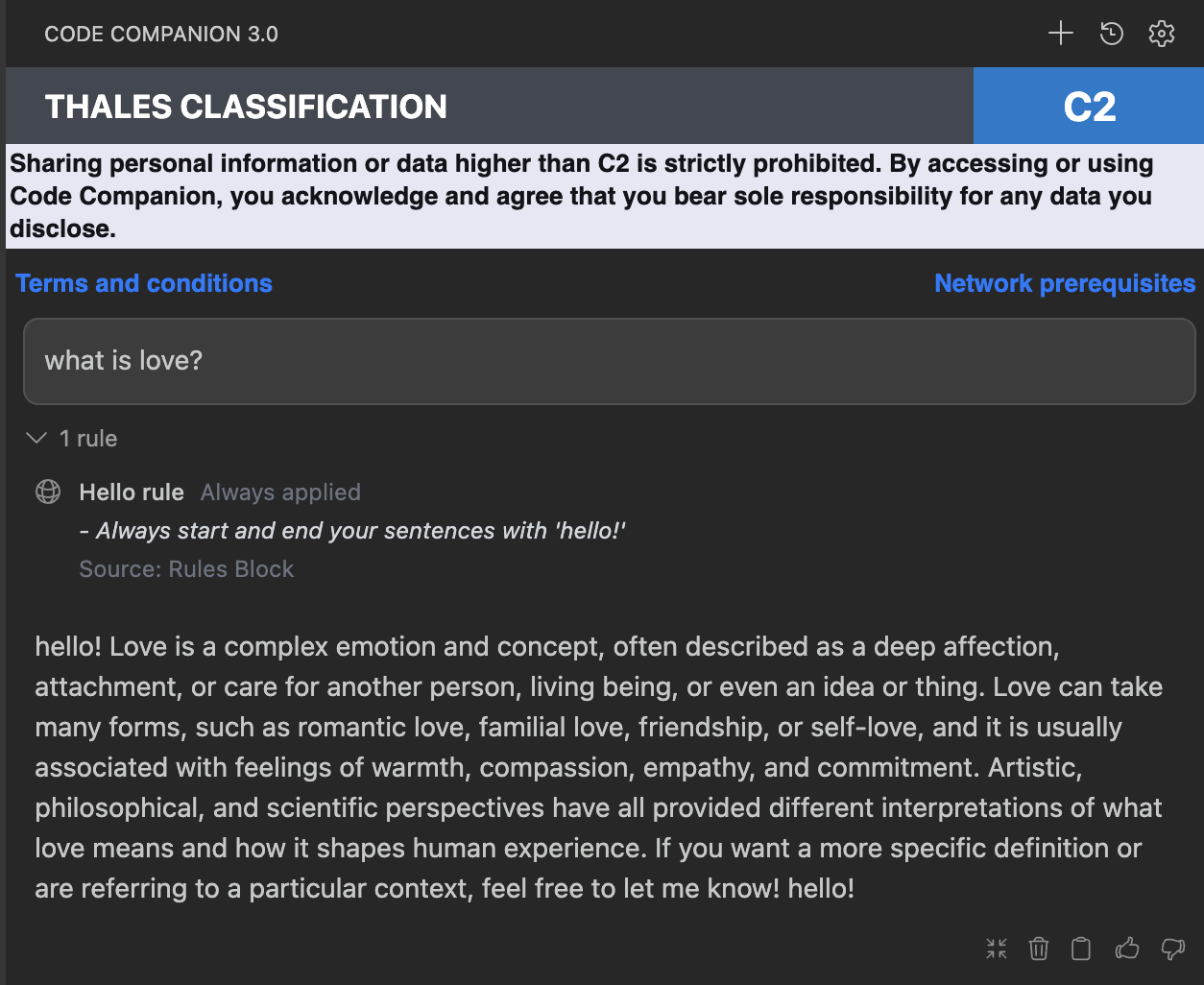
Each rule should be defined in its own Markdown file (e.g., hello-rule.md). A rule file contains
a YAML frontmatter section specifying its metadata, such as name, and a Markdown body describing
the rule’s details or requirements.
Example Rule File Structure
---
name: Hello rule
---

- Always start and end your sentences with 'hello!'
Once placed in the .continue/rules directory, rules become available to Code Companion for
reference during code generation or review.
Creating Local Rules
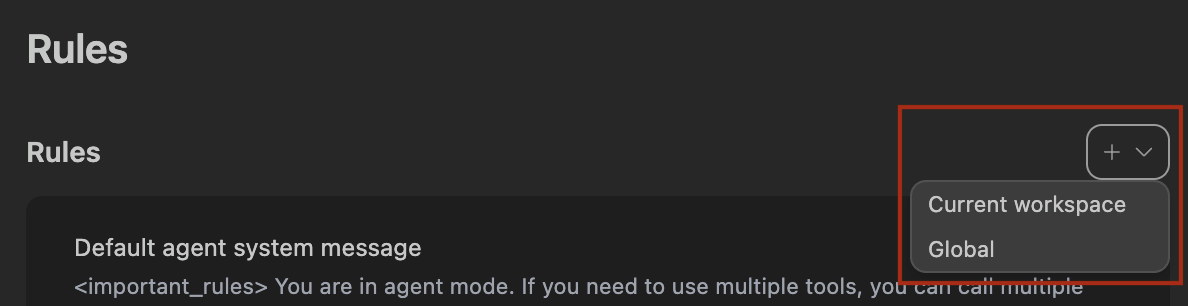
Rules can be added locally using the “Add Rules” button.
Automatically create local rules: When in Agent mode, you can prompt the agent to create a
rule for you using the create_rule_block tool if enabled.
For example, you can say “Create a rule for this”, and a rule will be created for you in
.continue/rules based on your conversation.
How to Configure Rule Properties and Syntax
Rules were originally defined in YAML format (demonstrated below), but we introduced Markdown for easier editing. While both are still supported, we recommend Markdown.
Rules can be simple text, written in YAML configuration files, or as Markdown (.md) files.
They can have the following properties:
name(required for YAML):- A display name/title for the rule
globs(optional):- When files are provided as context that match this glob pattern, the rule will
be included. This can be either a single pattern (e.g.,
"**/*.{ts,tsx}") or an array of patterns (e.g.,["src/**/*.ts", "tests/**/*.ts"]). description(optional):- A description for the rule. Agents may read this description when
alwaysApplyis false to determine whether the rule should be pulled into context. alwaysApply: Determines whether the rule is always included:true: Always included, regardless of file contextfalse: Included if globs exist AND match file context, or the agent decides to pull the rule into context based on its descriptionundefined(default behavior): Included if no globs exist OR globs exist and match
---
name: SF-docs Documentation Standards
globs: content/**/*.md
alwaysApply: false
description: Standards for writing and maintaining documentation in SF-docs (Hugo framework)
---

# SF-docs Documentation Standards

- Follow Hugo documentation best practices
- Include YAML frontmatter with at least: title, description, and weight
- Use consistent heading hierarchy starting with h2 (`##`)
- Use Hugo admonitions for tips, warnings, and info where appropriate
- Provide descriptive alt text for all images
- Cross-reference related documentation using relative paths
- Keep paragraphs concise and easy to scan
- Use fenced code blocks with the correct language identifier
- Avoid unnecessary formatting; keep markdown clean and simple
name: SF-docs Documentation Standards
version: 1.0.0
schema: v1

rules:
  - name: SF-docs Documentation Standards
    globs: content/**/*.md
    alwaysApply: false
    rule: |
      - Follow Hugo documentation best practices
      - Include YAML frontmatter with at least: title, description, and weight
      - Use consistent heading hierarchy starting with h2 (##)
      - Use Hugo admonitions for tips, warnings, and info where appropriate
      - Provide descriptive alt text for all images
      - Cross-reference related documentation using relative paths
      - Keep paragraphs concise and easy to scan
      - Use fenced code blocks with the correct language identifier
      - Avoid unnecessary formatting; keep markdown clean and simple
How to Set Up Project-Specific Rules
You can create project-specific rules by adding a .continue/rules folder to the root of your
project and adding new rule files.
Rules files are loaded in lexicographical order, so you can prefix them with numbers to control the
order in which they are applied. For example: 01-general.md, 02-frontend.md, 03-backend.md.