version v7.2.
For up-to-date documentation, see the
latest version.
Code Companion - Agentic
3 minute read
How Agent Mode Works
Agent mode equips the Chat model with the tools needed to handle a wide range of coding tasks, allowing the model to make decisions and save you the work of manually finding context and performing actions.
Please note that when working on unusually large projects on IntelliJ, you may experience some interruptions while launching /init command.
How to Use Agent Mode
You can switch to Agent in the mode selector below the chat input box. The mode selector offers
three options:
- Chat mode: No tools available, pure conversation
- Plan mode: Read-only tools for safe exploration and planning
- Agent mode: All tools available for making changes
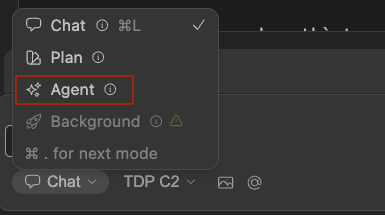
Use the keyboard shortcut Cmd/Ctrl + . to quickly cycle between modes.
How to Chat with Agent mode
Agent mode lives within the same interface as Chat
mode, so the
same input
is used to send messages
and you can still use the same manual methods of providing context, such as
@ context providers
or
adding highlighted code from the editor
.
How to Use Natural Language with Agent mode
With Agent mode, you can provide natural language instruction and let the model do the work. As an example, you might say
Set the @typescript-eslint/naming-convention rule to “off” for all eslint configurations in this project
Agent mode will then decide which tools to use to get the job done.
How to Give Agent Mode Permission
By default, Agent mode will ask permission when it wants to use a tool. Click Continue to allow
Agent mode to proceed with the tool call or Cancel to reject it.

How to View Tool Responses
Any data returned from a tool call is automatically fed back into the model as a context item. Most errors are also caught and returned, so that Agent mode can decide how to proceed.

Rules and Agent Mode
Rules are persistent instructions that shape how Code Companion behaves across conversations and projects.
They live in .continue/rules and are automatically applied as background guidance.
see rules for more info.
Use rules to make Agent mode more predictable, for example:
- Prefer certain frameworks, libraries, or coding styles
- Enforce formatting, naming conventions, or architectural constraints
- Require citations or links for certain types of answers
Agent mode can also create rules for you using the create_rule_block tool.
What Built-in Tools Are Available in Agentic mode?
Code Companion includes several built-in tools which provide the model access to IDE functionality. In Agent mode, all tools are available including the read-only tools above plus:
- Create new file (
create_new_file): Create a new file within the project - Edit file (
edit_existing_file): Make changes to existing files - Run terminal command (
run_terminal_command): Run commands from the workspace root - Create Rule Block (
create_rule_block): Create a new rule block in.continue/rules - All other write/execute tools for modifying the codebase
Built-in Tool Handshake
Tools provide a flexible, powerful way for models to interface with the external world. They are
provided to the model as a JSON object with a name and an arguments schema. For example, a
read_file tool with a filepath argument will give the model the ability to request the contents
of a specific file.
The following handshake describes how Agent mode uses tools:
- In Agent mode, available tools are sent along with
userchat requests - The model can choose to include a tool call in its response
- The user gives permission. This step is skipped if the policy for that tool is set to
Automatic - Continue calls the tool using built-in functionality or the MCP server that offers that particular tool
- Continue sends the result back to the model
- The model responds, potentially with another tool call and step 2 begins again
Tool availability varies by mode: Chat mode: No tools included Plan mode: Only read-only tools included Agent mode: All tools included