version v7.2.
For up-to-date documentation, see the
latest version.
Code Companion - Autocomplete
3 minute read
Quick Start
How to use
 VSCode
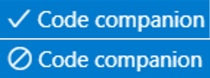
If autocomplete is on, a checkmark will appear in the status panel at the bottom right. If it’s off, a crossed-out circle will appear.
Click the Code Companion button in the status panel at the bottom right of the screen. A drop-down list will open in the search bar at the top. Click on Disable/Enable autocomplete.
Alternatively, open VSCode settings, search for Continue and uncheck the box enable tab autocomplete.
 JetBrains
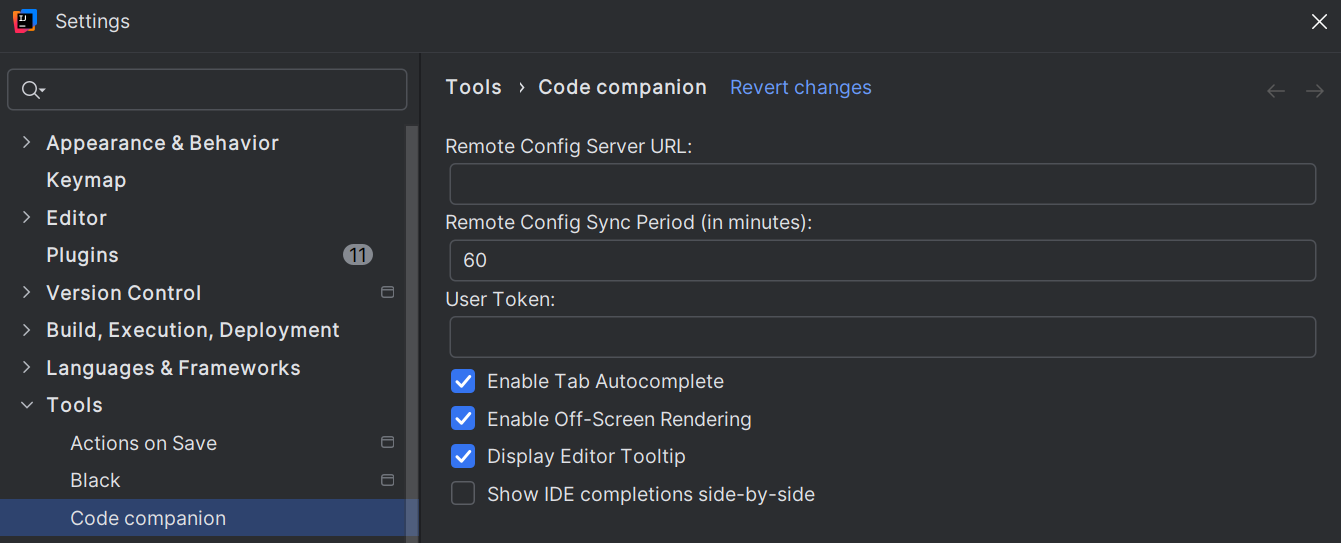
Open settings -> tools -> Code Companion and check the box enable tab autocomplete.
Accepting a full suggestion
Accept a full suggestion by pressing Tab
Rejecting a full suggestion
Reject a full suggestion with Esc
Partially accepting a suggestion
For more granular control, use cmd/ctrl+ →to accept parts of the suggestion word-by-word.
Forcing a suggestion
VSCode
If you want to trigger a suggestion immediately without waiting, or if you’ve dismissed a suggestion
and want a new one, you can force it by using the keyboard shortcut cmd/ctrl+ alt+
space.
How Autocomplete Works
Autocomplete is a system that uses a combination of retrieval methods and response processing techniques. The system can be understood in roughly three parts.
Timing
In order to display suggestions quickly, without sending too many requests, we do the following:
- Debouncing: If you are typing quickly, we won’t make a request on each keystroke. Instead, we wait until you have finished.
- Caching: If your cursor is in a position that we’ve already generated a completion for, this completion is reused. For example, if you backspace, we’ll be able to immediately show the suggestion you saw before.
Context
Code Companion uses a number of retrieval methods to find relevant snippets from your codebase to include in the prompt.
Filtering
Language models aren’t perfect, but can be made much closer by adjusting their output. We do extensive post-processing on responses before displaying a suggestion, including:
- filtering out special tokens
- stopping early when re-generating code
- fixing indentation
We will also occasionally entirely filter out responses if they are bad. This is often due to extreme repetition.
Context Selection
Autocomplete will automatically determine context based on the current cursor position. We use the following techniques to determine what to include in the prompt:
File prefix/suffix
We will always include the code from your file prior to and after the cursor position.
Definitions from the Language Server Protocol
Similar to how you can use cmd/ctrl + click in your editor, we use the same tool (the LSP) to power “go to definition”. For example, if you are typing out a function call, we will include the function definition. Or, if you are writing code inside of a method, we will include the type definitions for any parameters or the return type.
Imported files
Because there are often many imports, we can’t include all of them. Instead, we look for symbols around your cursor that have matching imports and use that as context.
Recent files
We automatically consider recently opened or edited files and include snippets that are relevant to the current completion.