version v7.2.
For up-to-date documentation, see the
latest version.
Code Companion - Chat
3 minute read
Quick Start
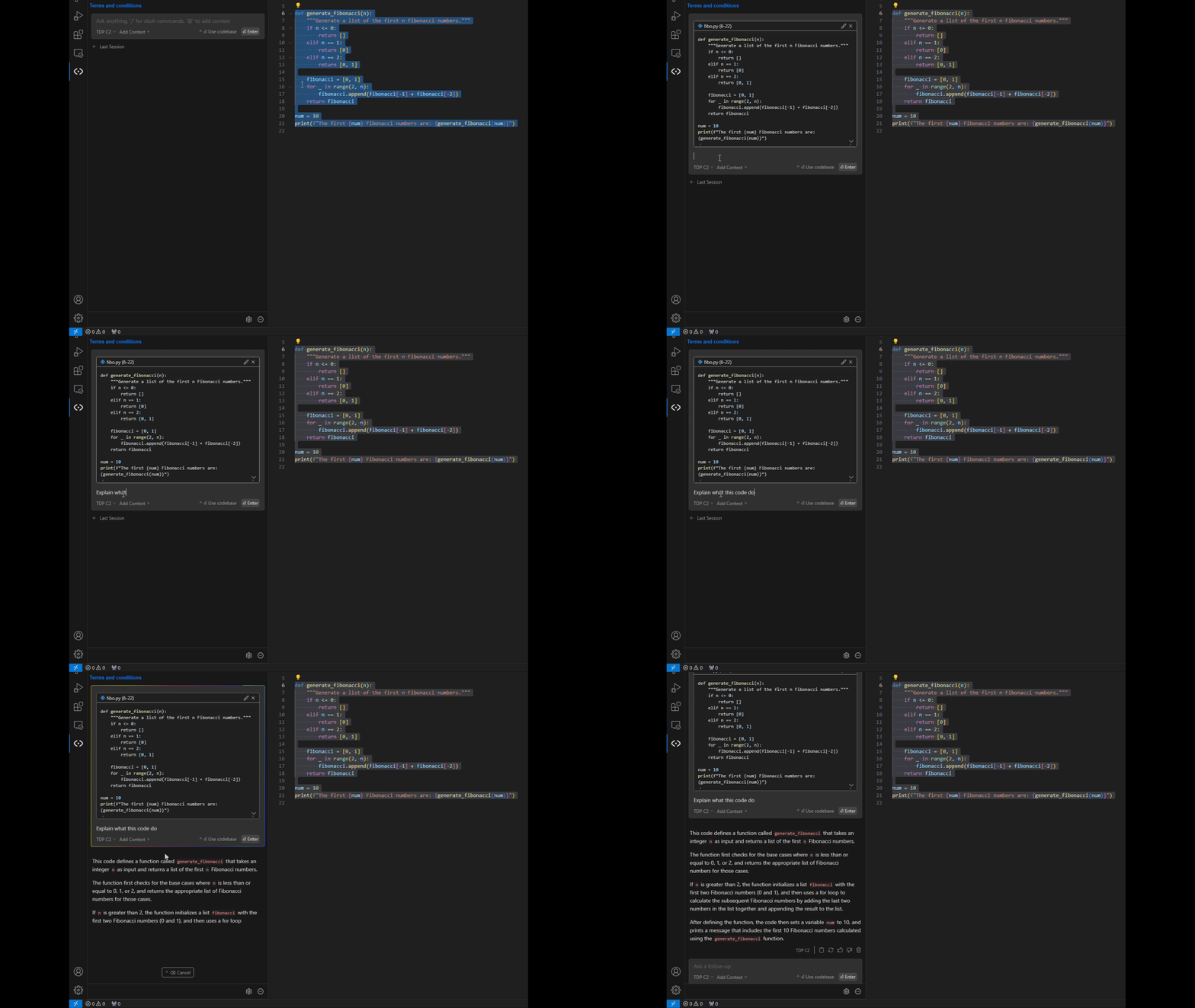
Chat makes it easy to ask for help from an AI without leaving your IDE. Get explanations, generate code, and iterate on solutions conversationally.
Basic Usage
1. Start a Conversation
Type your question or request in the chat input and press Enter.
Examples:
- “Explain this function”
- “How do I handle errors in this code?”
- “Generate a test for this component”
2. Include Code Context
Select code in your editor, then use the keyboard shortcut to include it in your chat:
 VSCode
- Press
VSCode
- Press Cmd/Ctrl+Lto send selected code to chat JetBrains
- Press
JetBrains
- Press Cmd/Ctrl+Jto send selected code to chat
3. Use @ for Additional Context
Type @to include specific context:
@Codebase- Search your project for relevant code@Docs- Include documentation@Files- Reference specific files@Terminal- Include terminal output
Working with Responses
When the AI provides code in its response, you’ll see action buttons:
- Apply to current file - Replace your selected code
- Insert at cursor - Add code at your cursor position
- Copy - Copy code to clipboard
Tips for Effective Use
Start Fresh
Press Cmd/Ctrl + L
VSCode
or Cmd/Ctrl + J
JetBrains
in an empty chat to start a
new session.
Be Specific
Include details about:
- What you’re trying to accomplish
- Any constraints or requirements
- Your preferred coding style or patterns
Iterate
If the first response isn’t perfect:
- Ask follow-up questions
- Request modifications
- Provide additional context
Common Use Cases
Code Explanation
Select confusing code and ask “What does this code do?”
Bug Fixing
Include error messages and ask “How do I fix this error?”
Code Generation
Describe what you want: “Create a React component that displays a user profile”
Refactoring
Select code and ask “How can I make this more efficient?”
Chat is designed for quick interactions and iterative problem-solving. Don’t hesitate to ask follow-up questions!
How Chat Works
Code Companion’s Chat feature provides a conversational interface with AI models directly in your IDE sidebar.
Core Functionality
When you start a chat conversation, Code Companion:
- Gathers Context: Uses any selected code sections and @-mentioned context
- Constructs Prompt: Combines your input with relevant context
- Sends to Model: Prompts the configured AI model for a response
- Streams Response: Returns the AI response in real-time to the sidebar
Context Management
Automatic Context
- Selected code in your editor
- Current file context when relevant
- Previous conversation history in the session
Manual Context
@Codebase- Search and include relevant code from your project@Docs- Include documentation context@Files- Reference specific files- Custom context providers
Response Handling
Each code section in the AI response includes action buttons:
- Apply to current file - Replace selected code
- Insert at cursor - Add code at cursor position
- Copy - Copy code to clipboard
Session Management
- Use
Cmd/Ctrl+L
VSCode
or Cmd/Ctrl+J
JetBrains
to start a new session - Clears all previous context for a fresh start
- Helpful for switching between different tasks
Advanced Features
Prompt Inspection
View the exact prompt sent to the AI model in the prompt logs for debugging and optimization.
Context Providers
Learn more about how context providers work:
Chat is designed to feel like a natural conversation while maintaining full transparency about what context is being used.