version v7.2.
For up-to-date documentation, see the
latest version.
Code Companion - Edit
3 minute read
Quick Start
How to use it
Edit is a convenient way to make quick changes to specific code and files. Select code, describe your code changes, and a diff will be streamed inline to your file which you can accept or reject.
Edit is recommended for small, targeted changes, such as
- Writing comments
- Generating unit tests
- Refactoring functions or methods
Highlight code and activate
Highlight the block of code you would like to modify and press cmd/ctrl + i to
active Edit mode. You can also enter Edit mode by pressing cmd/ctrl + i with
no code highlighted, which will default to editing the current file.
Describe code changes
Describe the changes you would like the model to make to your highlighted code. For edits, a good prompt should be relatively short and concise. For longer, more complex tasks, we recommend using Chat .
Accept or reject changes
Proposed changes appear as inline diffs within your highlighted text.
You can navigate through each proposed change, accepting or rejecting them using
cmd/ctrl + opt + y (to accept) or cmd/ctrl +
opt + n (to reject).
You can also accept or reject all changes at once using cmd/ctrl + shift +
enter (to accept) or cmd/ctrl + shift + delete/backspace
(to reject).
If you want to request a new suggestion for the same highlighted code section, you can use
cmd/ctrl + i to re-prompt the model.
VS Code
In VS Code, Edit is implemented in the extension sidebar with a similar interface to
chat
, and you can also enter Edit mode by using the Mode Selector below the main Chat
input to select Edit.
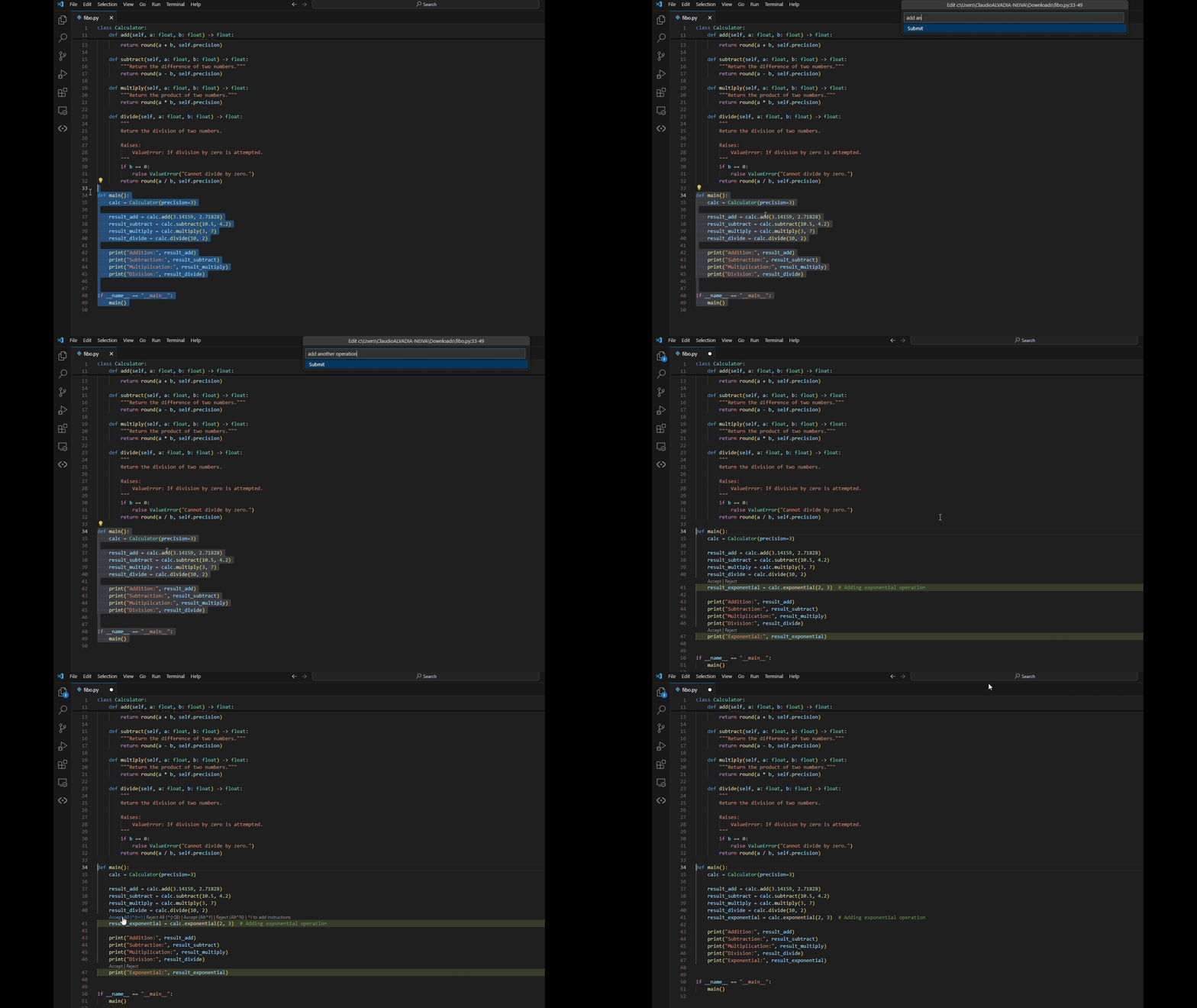
You can also reject and accept diffs using the Reject All and Accept All buttons that show up in
the Chat when diffs are present (see examples below).
Adding Code to Edit
Along with adding highlighted code, you can also manually add files to edit using the Add file
combobox or by clicking the dropdown and selecting Add all open files. To add all files that are
currently open in the editor.
JetBrains
In  JetBrains
, Edit is implemented as an inline popup.
JetBrains
, Edit is implemented as an inline popup.
How Edit Works
Using the highlighted code, the contents of the current file containing your highlight, and your input instructions, we prompt the model to edit the code according to your instructions. No other additional context is provided to the model.
The model response is then streamed directly back to the highlighted range in your code, where we apply a diff formatting to show the proposed changes.
If you accept the diff, we remove the previously highlighted lines, and if you reject the diff, we remove the proposed changes.
If you would like to view the exact prompt that is sent to the model during an edit, you can find it in the prompt logs .
Code to Edit
The entire contents of each file (the current file for
JetBrains
inline Edit, the
Code to Edit item for VS Code Edit mode) are included in the prompt for context. The model will
only attempt to edit the highlighted/specified ranges.
Context Providers
In VS Code Edit mode, you can use @ to add context using
Context Providers
, similar to Chat
. Some context
providers may be disabled in Edit mode.