version v7.2.
For up-to-date documentation, see the
latest version.
Git
3 minute read

Git is a distributed version control system designed to handle everything from small to very large projects with speed and efficiency. Unlike centralized version control systems, Git allows every developer to have a full copy of the project history stored locally.
This decentralization enables seamless collaboration and efficient handling of branches and merges.
For Sofware Code Management (SCM) best practices (branching strategies, commit conventions, merge types, tagging), refer to the SCM Practices section.
If you are new to Git, please consider reading at least the Git Introduction by GitLab .
Git differs from other version control systems (like CVS or Subversion) in how it stores information. Instead of tracking changes to files, Git captures snapshots of the entire codebase. Understanding this key difference will make it easier to use Git effectively.
Key Concepts
- Repository (Repo)
- A repository is a storage space where your project files and the entire history of changes are kept. Repositories can be local (on your computer) or remote (hosted on a server or service like GitHub).
- Clone
- A clone is a copy of a repository that resides on your local machine. Cloning a repository allows you to have the entire history of the project.
- Branch
- A branch is a separate line of development within a repository. Branches allow you to work on different features or fixes independently of the main project.
- Commit
- A commit is a snapshot of changes made to the files in your repository. Each commit has a unique identifier and contains a message describing the changes.
- Merge
- Merging combines changes from different branches into a single branch. This is usually done to integrate new features or fixes into the main codebase.
- Pull/Push
- Pulling updates your local repository with changes from the remote repository, while pushing uploads your local changes to the remote repository.
- Working directory
- The working directory is the folder on your computer where you edit and modify files. It contains the current version of your project files that you can see and work with.
- Staging area
- The staging area (also called the index) is an intermediate space where you prepare changes before committing them. It allows you to selectively choose which changes to include in your next commit.
- Local Repo
- The local repository is the complete Git database stored on your computer. It contains the entire history of your project, including all commits, branches, and metadata.
- Remote Repo
- The remote repository is a version of your project hosted on a server (like GitHub or GitLab). It serves as a central point for collaboration, allowing team members to share and synchronize their work.
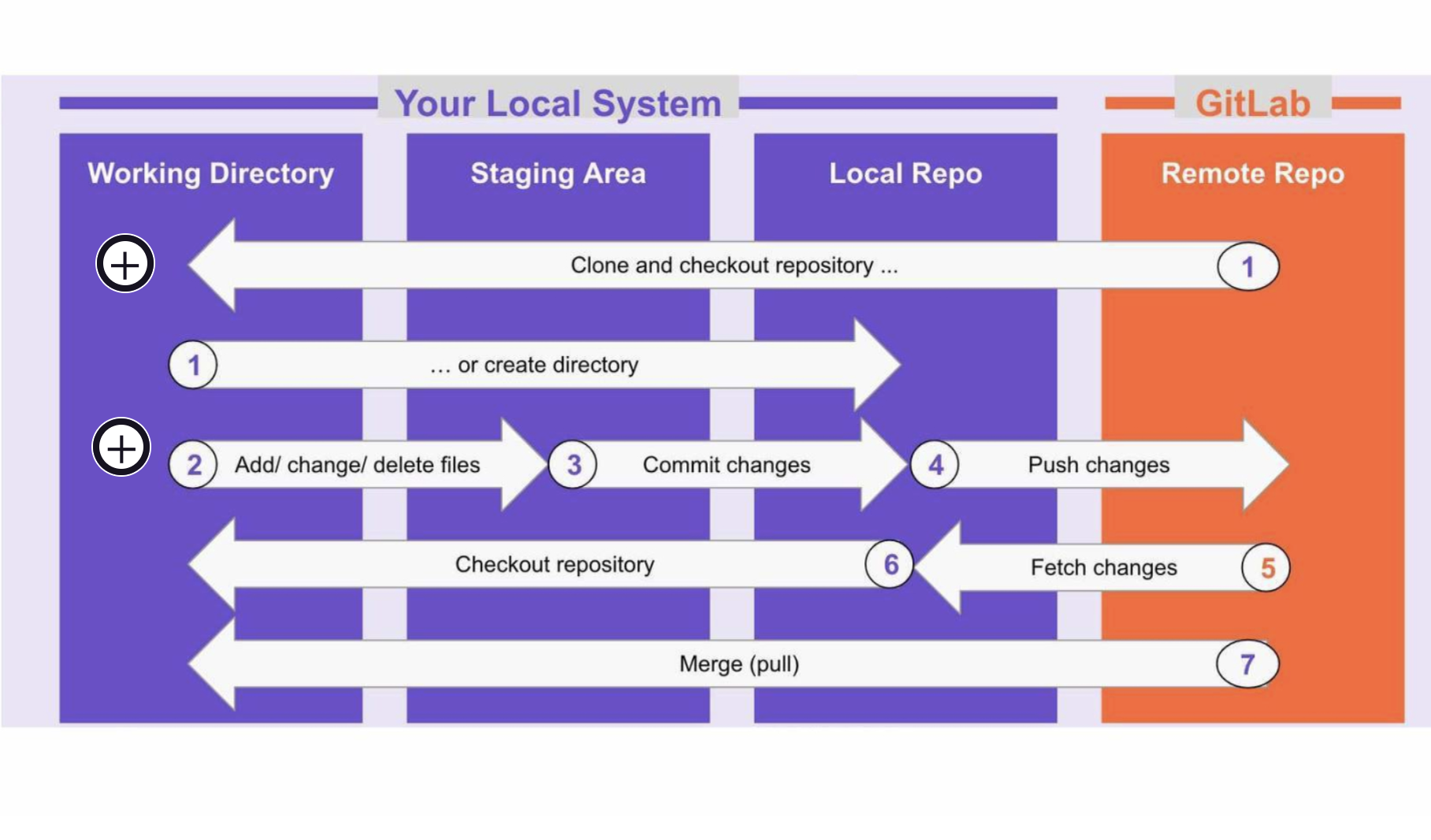
Basic Commands
git init: Initializes a new Git repository in the current directory.git clone [url]: Clones a remote repository to your local machine.git status: Displays the state of the working directory and staging area.git add [file]: Stages changes for the next commit.git commit -m "[message]": Records staged changes to the repository with a message.git push: Uploads local changes to a remote repository.git pull: Fetches and integrates changes from a remote repository.git branch: Lists all branches in the repository.git switch [branch-name]: Switches to the specified branch.git merge [branch-name]: Merges the specified branch into the current branch.
Explore Lazygit , a terminal UI that enables you to view commit history, pull or push changes, resolve merge conflicts, checkout recent branches, and more.