version v7.2.
For up-to-date documentation, see the
latest version.
CI/CD
5 minute read

GitLab CI/CD is a robust suite of DevOps tools embedded within GitLab, facilitating the automation of the entire software development lifecycle.
It integrates seamlessly with GitLab repositories, offering a complete pipeline framework to automate the processes of building, testing and deploying code.
Key Concepts and Components
- Pipelines
- Series of steps that execute in a defined order.
Each step performs a specific actions, such as building the code, running tests,
or deploying to an environment.
Pipelines could be triggered by various events, such as pushes to the repository, merge requests, or scheduled intervals. You can find a detailed explanation of pipelines .
- Jobs
- Individual steps within a pipeline. They are defined in the
.gitlab-ci.ymlfile and can run scripts, execute commands - Stages
- Logical groupings of jobs structuring the CI/CD pipeline to carry out tasks
in a defined sequence.
Jobs in the same stage run in parallel, while stages run sequentially.
- Artifacts
- Files and data produced by jobs in a CI/CD pipeline that are preserved for use in later stages
or for debugging and auditing purposes.
Artifacts can include compiled binaries, log files, test results, and configuration files. They are essential for transferring outputs between jobs and stages within the pipeline.
- Variables
- Key-value pairs used in GitLab CI/CD to configure and customize pipeline execution. Variables can be predefined , custom-defined at the project, group or instance level and can be masked to protect sensitive information.
- Runners
- Agents that execute the jobs defined in the pipeline.
Some platforms provide shared runners that are managed by the platform administrators and the ability for users to set up their own specific runners.
How It Works
Define the Pipeline
Pipelines are defined in a file named .gitlab-ci.yml at the root of your repository.
This YAML file describes how your project should be built, tested and deployed.
stages:
   - build
   - test
   - staging

build-job:
  stage: build
  script:
    - echo "Hello, $GITLAB_USER_LOGIN!"

test-subset1:
  stage: test
  variables:
    MY_TESTS_SUBSET: "subset1"
  script:
    - echo "This job tests something"

test-subset2:
  stage: test
  variables:
    MY_TESTS_SUBSET: "subset2"
  script:
    - echo "This job tests something, but takes more time than test-job1."

deploy-staging:
  stage: staging
  script:
    - echo "This job deploys something from the $CI_COMMIT_BRANCH branch."
Pipeline Editor
This is a user-friendly interface designed to create, edit, and manage CI/CD pipeline file (.gitlab-ci.yml).
It provides syntax highlighting, validation, and real-time feedback to help users visualize and construct pipelines efficiently.
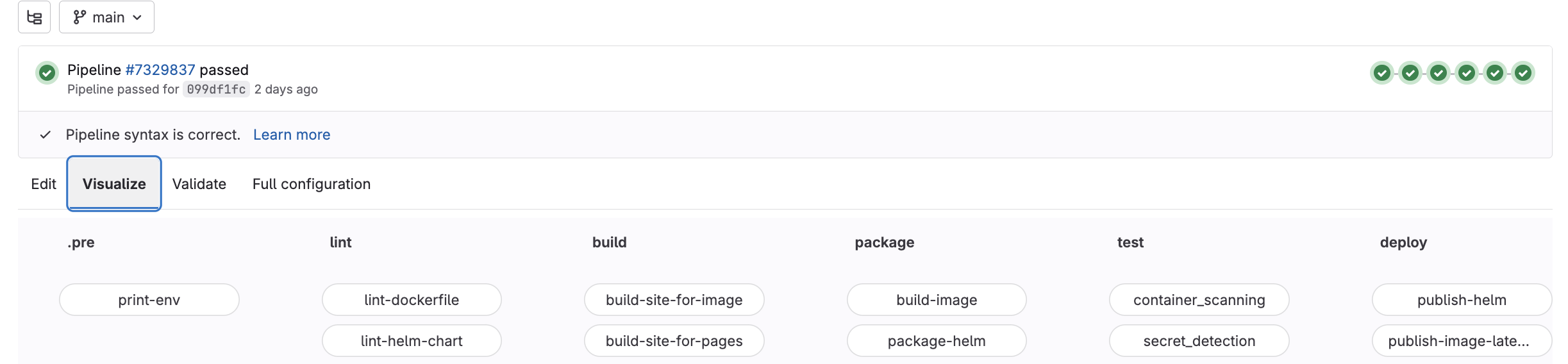
- Interactive Edition: The editor offers an interactive and intuitive coding environment.
- Live Preview: Offers a live preview of the pipeline graph alongside your code, giving immediate visual feedback on how changes affect the pipeline structure.
- Validation: Real-time checks ensure that your pipeline configuration follows GitLab CI/CD syntax rules and best practices.
- Configuration: Access to a fully expanded CI/CD configuration as one combined file from included templates to extended jobs.
Pipeline execution
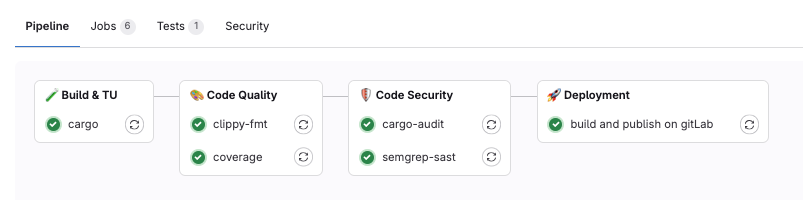
- GitLab provides detailed feedback on job statuses, logs, and any issues that occur during the pipeline execution.
- This feedback helps in quickly identifying and fixing problems.
Pipelines triggers
In GitLab, pipelines can be triggered by various events and conditions such as:
- Pushes to the repository
- Merge requests
- Scheduled pipelines
- API Triggers
- Parent Trigger job
- Manual triggers
Post Pipeline Actions
Reading Logs
Logs can be accessed through the GitLab interface, providing a detailed view of each step’s output and any errors encountered.
Reviewing logs can help identify issues, debug errors, and understand the performance of different stages.

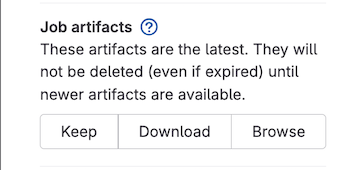
Downloading Artifacts
Artifacts are files created by jobs during the pipeline execution. After the pipeline completes, these artifacts can be downloaded for further analysis or use.
This includes compiled binaries, test reports, logs, and any other files that may be needed for subsequent tasks or for deployment.
Viewing the Pipeline Graph
GitLab’s visual pipeline graph allows users to see the flow and status of all stages and jobs within the pipeline.
Post-completion, this graph provides an overview of which jobs succeeded, failed, or were skipped, helping teams quickly identify problematic areas and understand the overall pipeline execution.
Retrying Jobs
In the event that a job fails, GitLab provides the functionality to retry individual jobs without needing to rerun the entire pipeline.
This is useful for quickly resolving intermittent issues and continuing the pipeline process from the point of failure.
Checking Environment
For deployment pipelines, post-completion actions include verifying the status of the deployed environments. This ensures that new features or changes have been successfully deployed and are functioning as expected in staging, testing, or production environments.
Triggering Notifications
Notifications and alerts can be configured to trigger upon pipeline completion.
This ensures that relevant team members or stakeholders are informed about the pipeline’s status, whether it’s success or failure, and can act accordingly.
Advanced Pipelines Features
- Parent and Child Pipeline
- The parent pipeline can trigger multiple child pipelines, each responsible for specific tasks or stages.
- Conditional Job Execution
- Allows to include or exclude jobs based on specific conditions defined within the pipeline configuration.
- Dependency Caching
- Storing and reusing files or dependencies generated during pipeline execution to avoid redundant processing in subsequent runs.
- Environments
- Set up and manage dynamic environments that are created and destroyed based on branches or tags.
- GitLab Secrets Manager
- GitLab is also working on introducing a native solution to secrets management to securely and conveniently store secrets within GitLab.
- Add security and verification steps like SAST, SCA to your pipelines
- Protected you sensitives datas using masked variables.
- Use predefined and customized steps by using NextGen CI/CD .
- Set & Configure your runners at the right scope and scale for your needs.
Useful Resources
Tools
- We recommend using the official GitLab extension for VSCode.
- We also recommend using
glabfor command line interactions with GitLab.
Understand & Learn
- Continuous Integration practice guide .
- GitLab CI/CD practice .
- GitLab CI/CD Official Documentation
- GitLab CI/CD syntax reference