version v7.2.
For up-to-date documentation, see the
latest version.
Sandboxing Issue Triage
5 minute read
This page explains the Issue Sandboxing behavior you will see after the upgrade. This page is designed to help you prepare for the upgrade.
SonarQube 2026.1 LTA — What new to expect
We are upgrading from SonarQube 2025.1 LTA → 2026.1 LTA.
TL;DR
A major LTA-to-LTA upgrade brings a significant number of new and improved rules across all languages.
New issues can appear on code you haven’t touched — either because the analyzers got smarter or because new rules were added to the quality profile.
The Sandbox feature is here to make this upgrade smooth: those issues are isolated automatically, they are visible in the UI, but they do not block your pipeline or fail your quality gate.
The goal is not to hide issues, it is to give your team time to triage them deliberately, without being caught off guard on release day.
Why does SonarQube find new issues on unchanged code?
Between 2025.1 LTA and 2026.1 LTA, Sonar shipped improvements in two categories:
1. Improved analyzers — existing rules now detect more cases, with fewer false positives. Code that previously passed can now correctly raise an issue because the engine understands the code more deeply.
2. New rules — new rules were added to the default Sonar way quality profile. These rules cover patterns that simply weren’t checked before.
Both are legitimate quality improvements. The Sandbox gives you time to assess them without pressure.
What happens on your project after the upgrade
Here is the sequence you will go through, based on a test run on projects analyzed under SonarQube 2025.1:
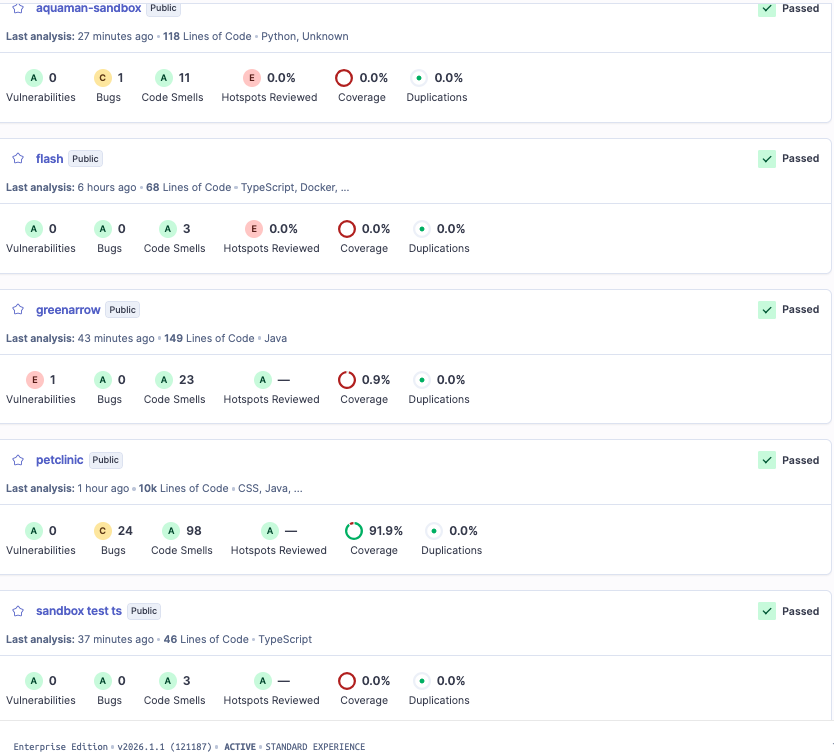
Step 1 — Check the Sandbox configuration on your project
Immeediatly after the upgrade, before any scan.
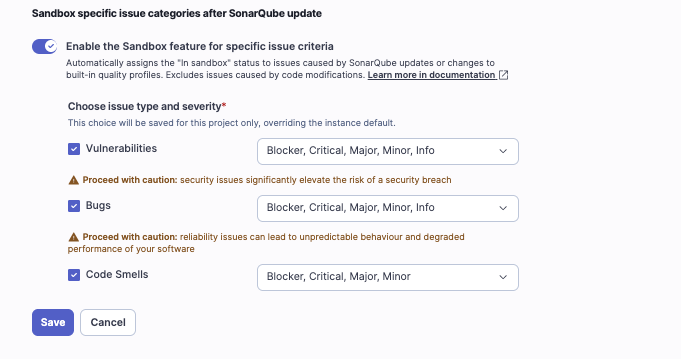
Go to: General Settings > General then Section: Sandbox specific issue categories after SonarQube update
You will see the instance-level default configuration. From here, you can:
- Keep the default — the sandbox conditions defined at instance level apply as-is
- Override — adjust the sandbox conditions specifically for your project (see section below on project-level override)
Step 2 — Re-run the analysis
Trigger a new analysis (push, manual scan, or CI). SonarQube applies the sandbox rules: matching issues are automatically flagged “In sandbox”.
Step 3 — Check your dashboard
Your existing metrics are unchanged. Quality gate: still passing.
A new widget appears on the project overview showing the count of sandboxed issues separately from open issues.
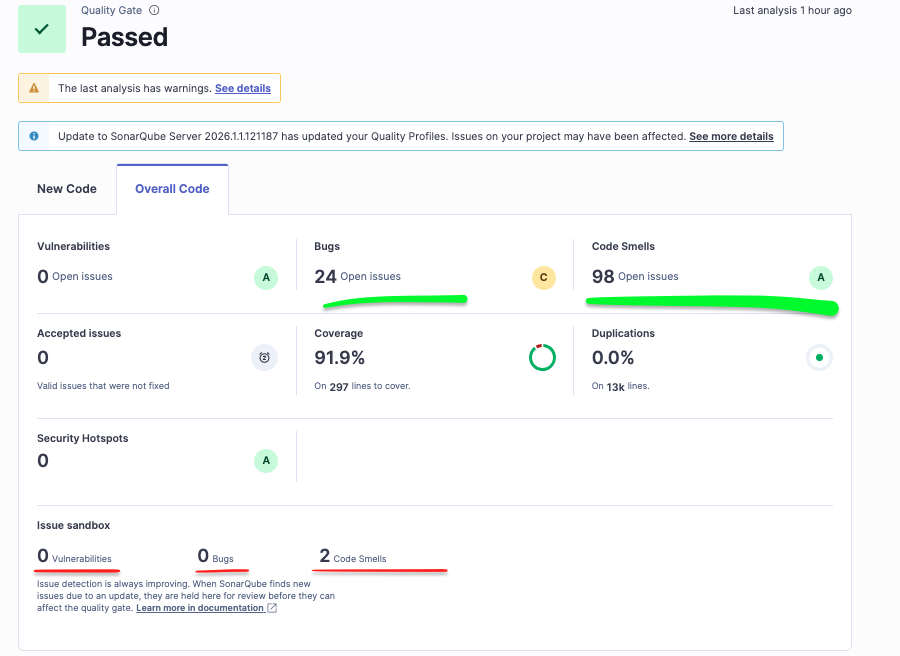
Step 4 — Find sandboxed issues in the Issues tab
Go to the Issues tab and filter by:Status = In Sandbox
You will see the full list of issues that were isolated, with their rule, location, severity and explanation — exactly like any other issue.
Note that Sandboxed issues generate no notification.
There is no alert, no badge everything looks normal when issues are placed in sandbox. This means your team could be unaware that new issues could have been detected.
Working with sandboxed issues
Once the upgrade to SonarQube 2026.1 is complete and the first analysis has run, you will start seeing sandboxed issues in your project.
What you will see in the UI
A sandboxed issue:
- ✅ Is visible in the Issues tab (filter:
Status = In Sandbox) - ✅ Shows the rule, location, and full explanation as usual
- ✅ Appears in a dedicated sandbox widget on the project overview
- ❌ Does not count toward your quality gate
- ❌ Does not affect your ratings or metrics
- ❌ Does not block your CI/CD pipeline
What you need to do — triage
Sandboxed issues don’t disappear on their own. Each issue gives you three options:
| Action | When to use it | Quality gate impact |
|---|---|---|
| Open | The issue is legitimate and should be fixed | ⚠️ Will count once opened |
| Accept | Known issue, won’t fix now (tracked as debt) | ✅ No impact |
| False positive | The rule fired incorrectly on your code | ✅ No impact |
Start with a bulk review. Most sandbox issues from a version upgrade are Minor or Info code smells. Batch-accept those that don’t align with your current quality policy, then schedule proper fixes in a future sprint.
Project-level override
By default, all projects inherit the instance-level sandbox configuration.
If your project has specific needs, you can override the sandbox conditions directly in your project settings, only Before first analysis on the new version
Project Settings > General Settings > General > Sandbox specific issue categoriesFrom there you can tighten or loosen the conditions (e.g. sandbox fewer or more severity levels) based on your project’s risk profile.
This part is under your reponsability.
This is per-project configuration — there is no automated rollout after the upgrade.
What is sandboxed — instance default configuration
| Issue Type | Proposed sandboxed severities | Rationale |
|---|---|---|
| Code Smells | ALL | Maintainability issues are usually low-risk for releases. Sandboxing them avoids noisy gate breaks. |
| Bugs | ALL | prevent unexpected gate failures after the upgrade, while remaining visible for inspection. |
| Vulnerabilities | None — never sandboxed | Security issues always count in the quality gate; they must be addressed or explicitly accepted. |
Sandbox is temporary
Sandboxed issues are not resolved issues. They are deferred, not dismissed.
If left untriaged, they accumulate as hidden technical debt and undermine the value of the upgrade.
We recommend:
- Triaging sandbox issues within the sprint following the upgrade
- Using Accept as a deliberate per-issue choice, not a systematic way to skip analysis
- Scheduling fixes for Open issues in the backlog, not indefinitely
The Sandbox is a buffer — should not become a permanent state.
FAQ
Q: Will my current quality gate fail after the upgrade?
No. Sandboxed issues do not affect the quality gate.
Your pipelines continue to pass as before, provided no new issues appear on your new code.
Q: How do I find sandboxed issues?
Issues tab → filter Status = In Sandbox. You can also filter by rule, file, or author.
Q: What if a rule fires incorrectly on my code?
Mark the issue as False positive and add a comment.
This can feed into a shared quality profile review if the same false positive affects multiple projects.
Q: How long do issues stay in sandbox?
Until you triage them. There is no automatic expiry.
They remain sandboxed across subsequent analyses as long as the underlying code hasn’t changed.
Q: What if I don’t override the instance config — is that safe?
Yes. The instance default applies automatically.
You only need to act if your project needs different conditions.